

You set them all up in Churn & retention → Setup → Emails. Each is off until you turn it on, and never goes to anyone from before that.
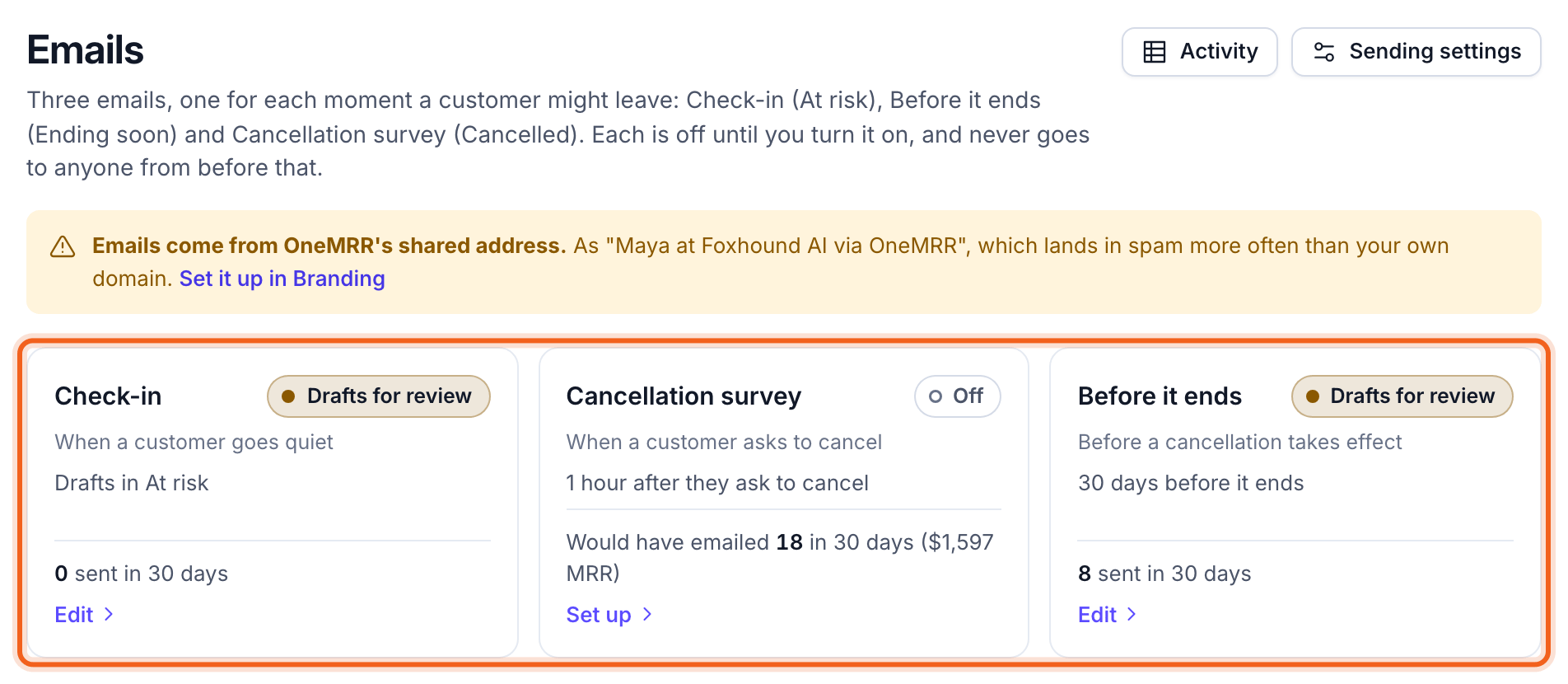
Where each email stands
Each customer gets at most one email per moment, so a tab’s customer list is also its list of emails. At risk, Ending soon and Cancelled share the same layout: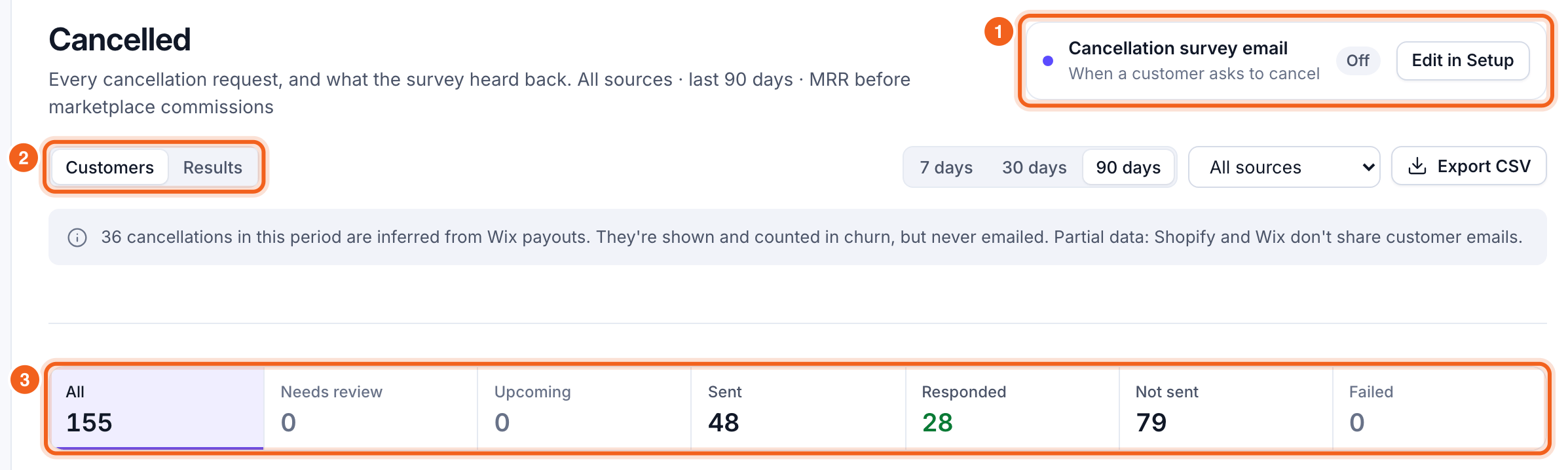
- The email: which email this tab’s customers get, when it goes, and how it’s set to send. Edit in Setup opens its section here.
- Customers or Results: the list, or what the email did. See Results.
- The email status bar: every customer on the tab, counted by where their email stands. Select a status to show only those customers; select All to see everyone again.
A status with nobody in it stays in the bar, greyed out.
Every email’s section
Each section has its settings on the left and, on the right, what it would do with your own data:- Would have emailed, last 30 days and Sent, last 30 days, with replies.
- Who’s next: flagged customers not emailed yet, the next cancellations to reach the mark, or the latest cancellations.
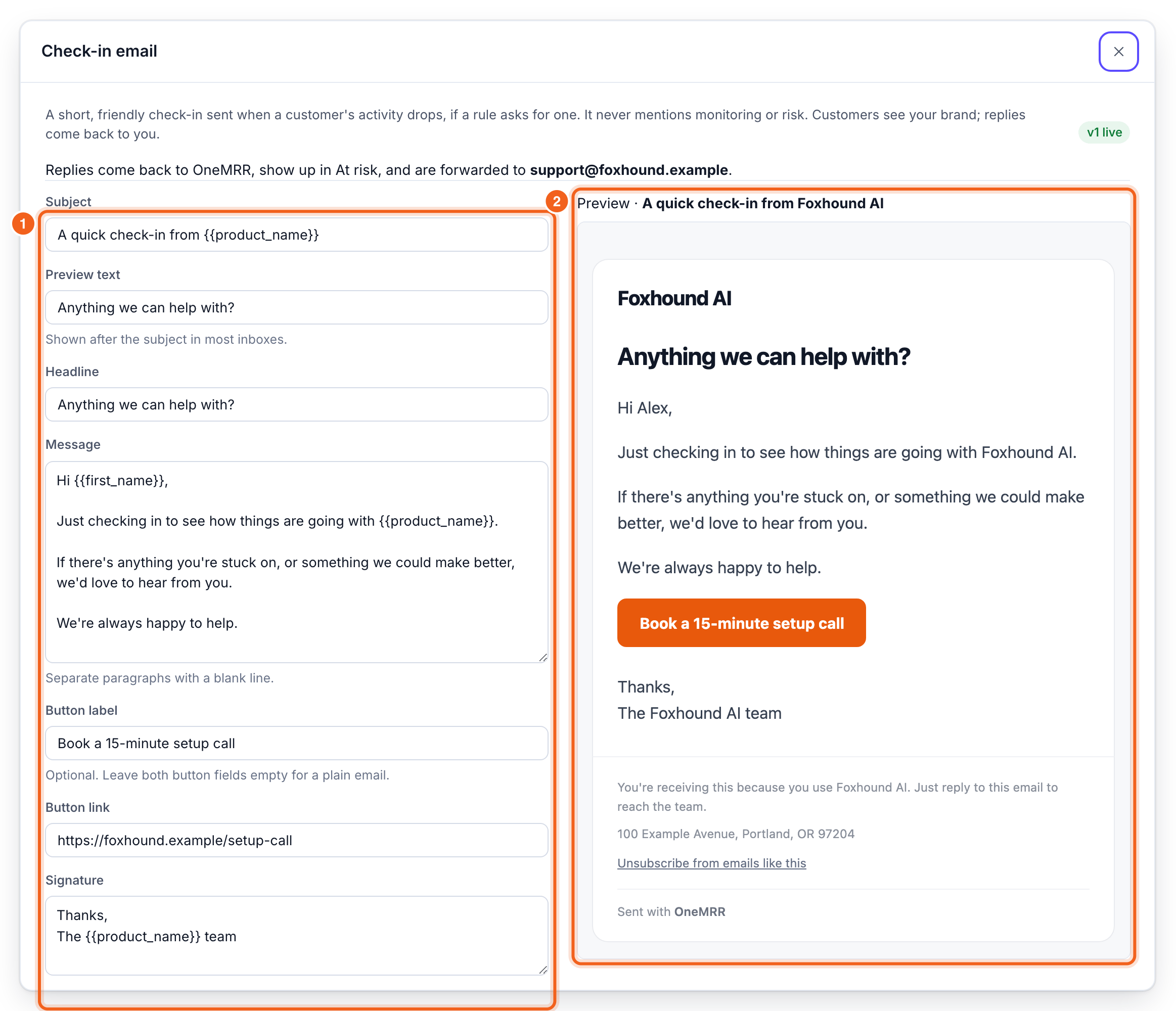
- Edit email: write the email (subject, preview text, heading, message, an optional button, and a signature) beside a preview of how the customer sees it. Select Publish when it’s ready.
- Send test email: sends it to you, exactly as customers get it. Tests are marked as tests and never counted.
- See its results: opens the email’s tab on Results.
Holdout group
Every email has a Holdout group: Off, 10%, 20% or 30% of the customers who’d get it are left out at random. Comparing the two groups on the email’s Results shows whether the email changes what customers do, not just who opens it. Customers already decided keep their group when you change it.Check-in
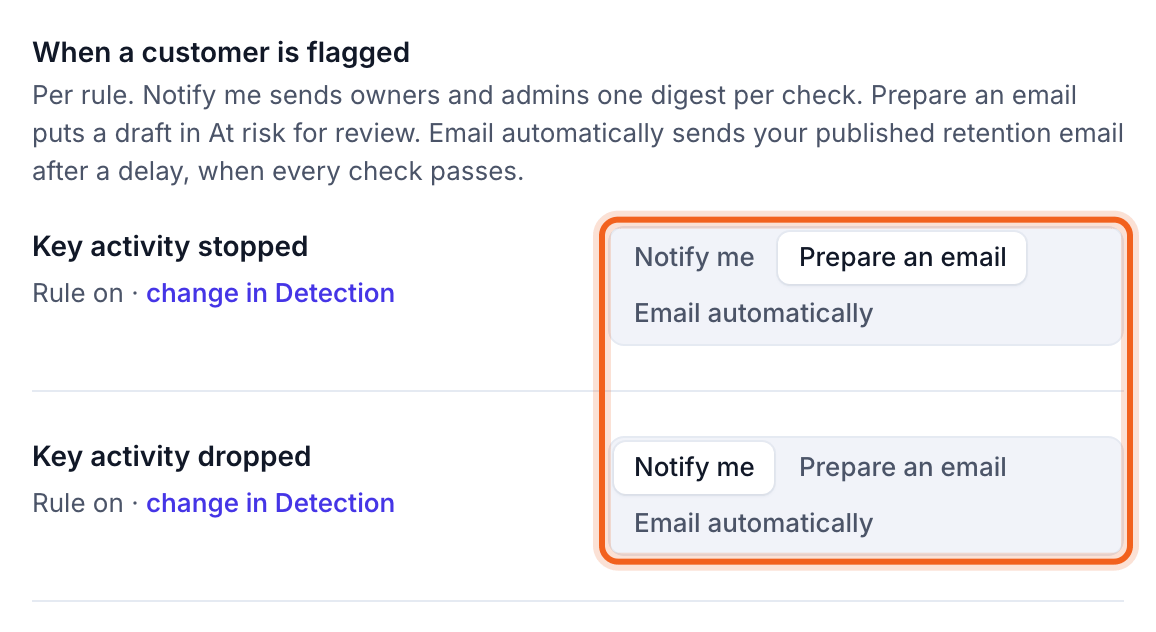
When a customer is flagged, choose for each Churn Signals rule:- Notify me: the flag shows on At risk, and owners and admins get one digest email per check.
- Prepare an email: a draft goes to At risk for you to review and send.
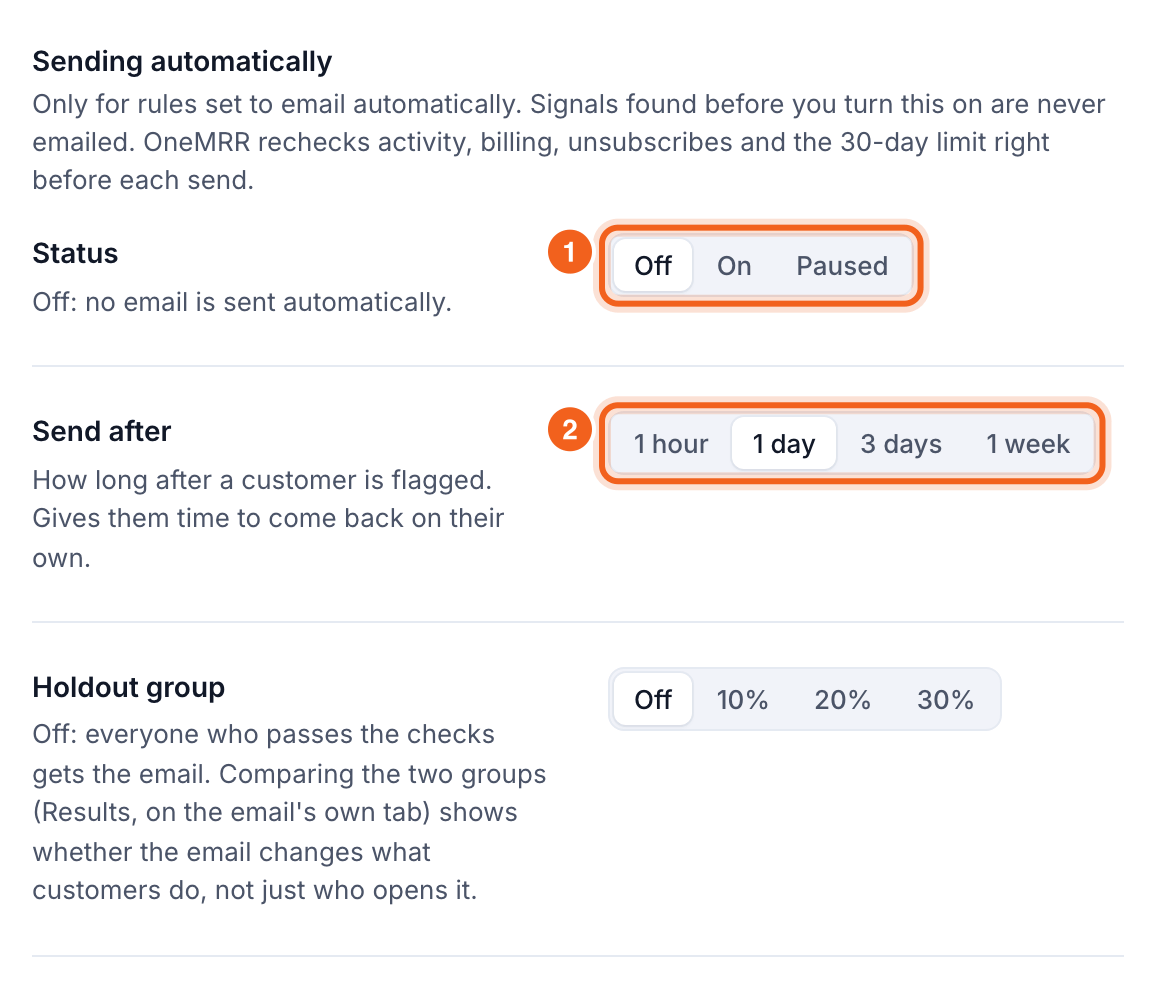
- Email automatically: your published check-in email goes out on its own after a delay, when every check passes.
- Status: Off, On or Paused. Turning it on asks you to confirm; customers flagged before that are never emailed.
- Send after: how long after a customer is flagged, which gives them time to come back on their own.
Cancellation survey
- Status: Off, On or Paused. Turning it on doesn’t email anyone who cancelled before.
- Send after: when the customer asks to cancel (Cancellation requested; Stripe tells OneMRR right away) or when their paid access ends (Access ended), and how long after.
Before it ends
Choose what happens, how many days before the end, and a holdout group. See Before it ends.Sending settings
Sending settings, at the top of the page, applies to all three emails:- From: your own domain, or OneMRR’s shared address until yours is set up. See Branding and sending.
- Replies go to: your confirmed reply-to address. Check-ins and Before it ends emails need one.
- Sending hours: when automatic emails may go out, in your time zone, and a daily limit.