- The breadcrumb shows where you are. Select any level to go back up.
- The filter chip at the top shows the same path. Select × to go back to everything. Your browser’s back button also goes up a level.
Every report follows
Once you drill in, the whole dashboard shows only that part: the headline, the chart, the bridge, and the other reports. Open Customers, Revenue movements, Insights or Churn & retention, and they stay inside the part you chose.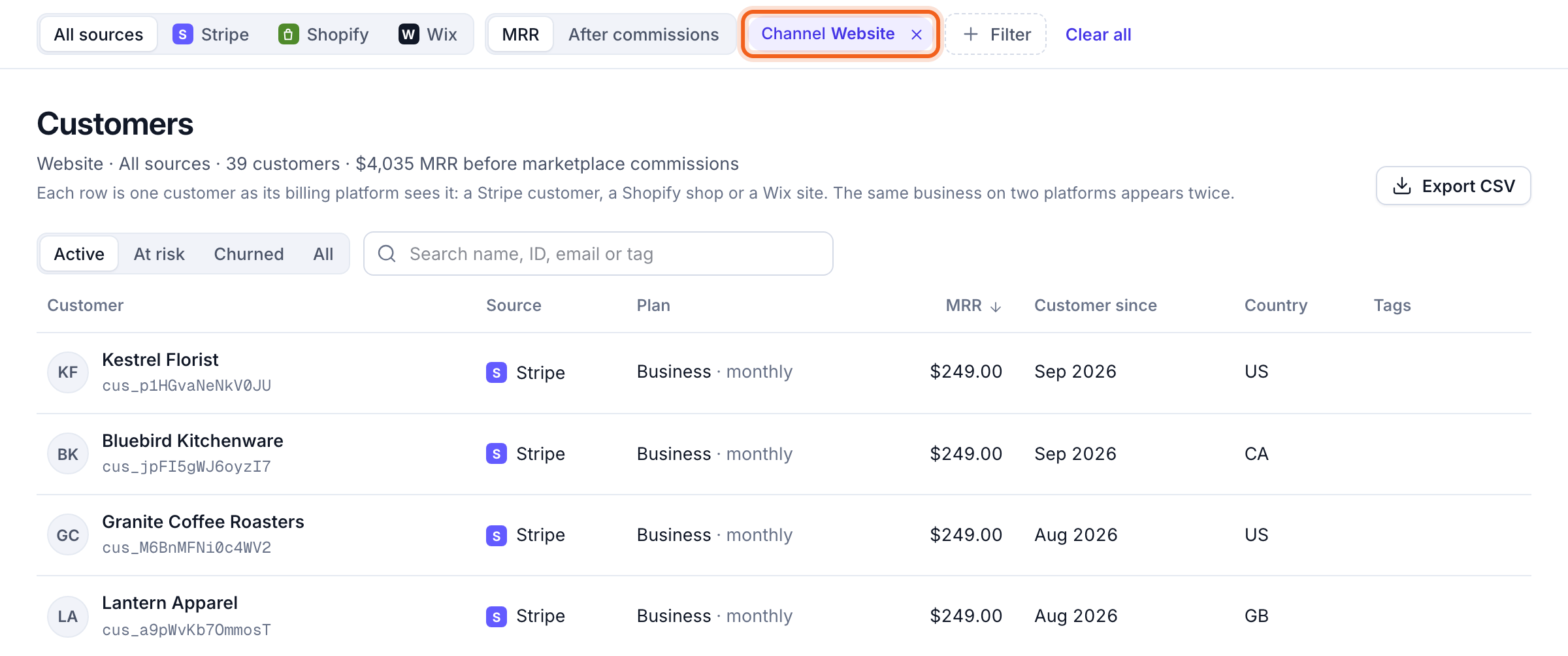
The “Moved between” row
Inside a breakdown, each part counts movements as if it were its own business. So when a customer upgrades from Growth to Pro, that’s churn for Growth and new for Pro, but an expansion for the business as a whole. The Moved between row holds the difference, so every column adds up to the total. It always nets to $0. It appears only when customers moved between parts that month, or belong to more than one part. Hover over the i next to it for the same explanation.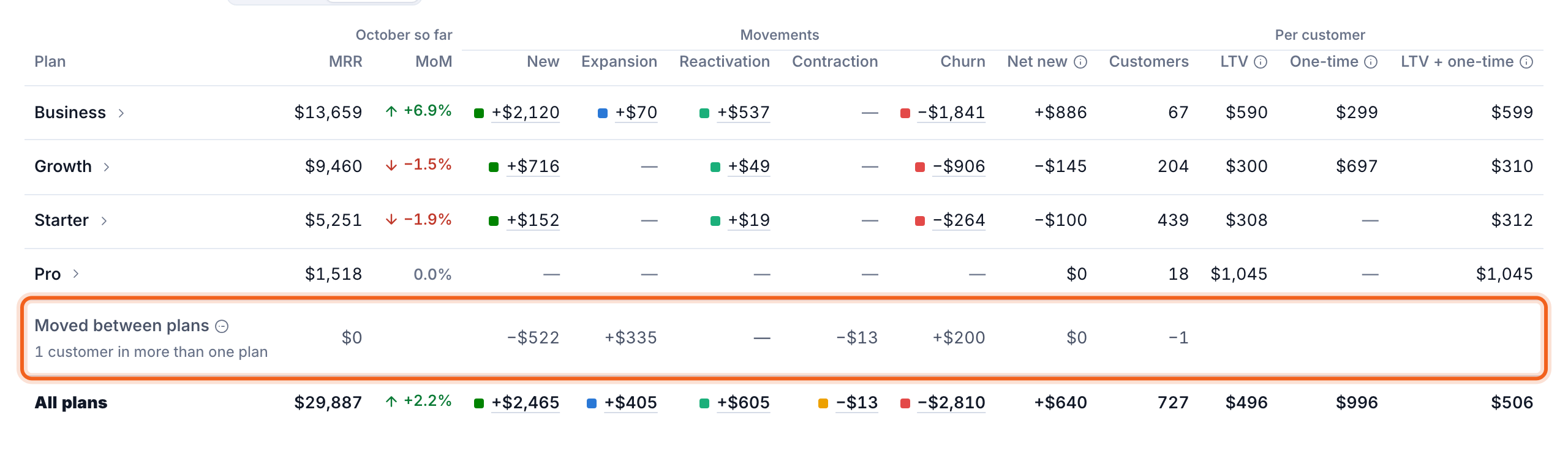
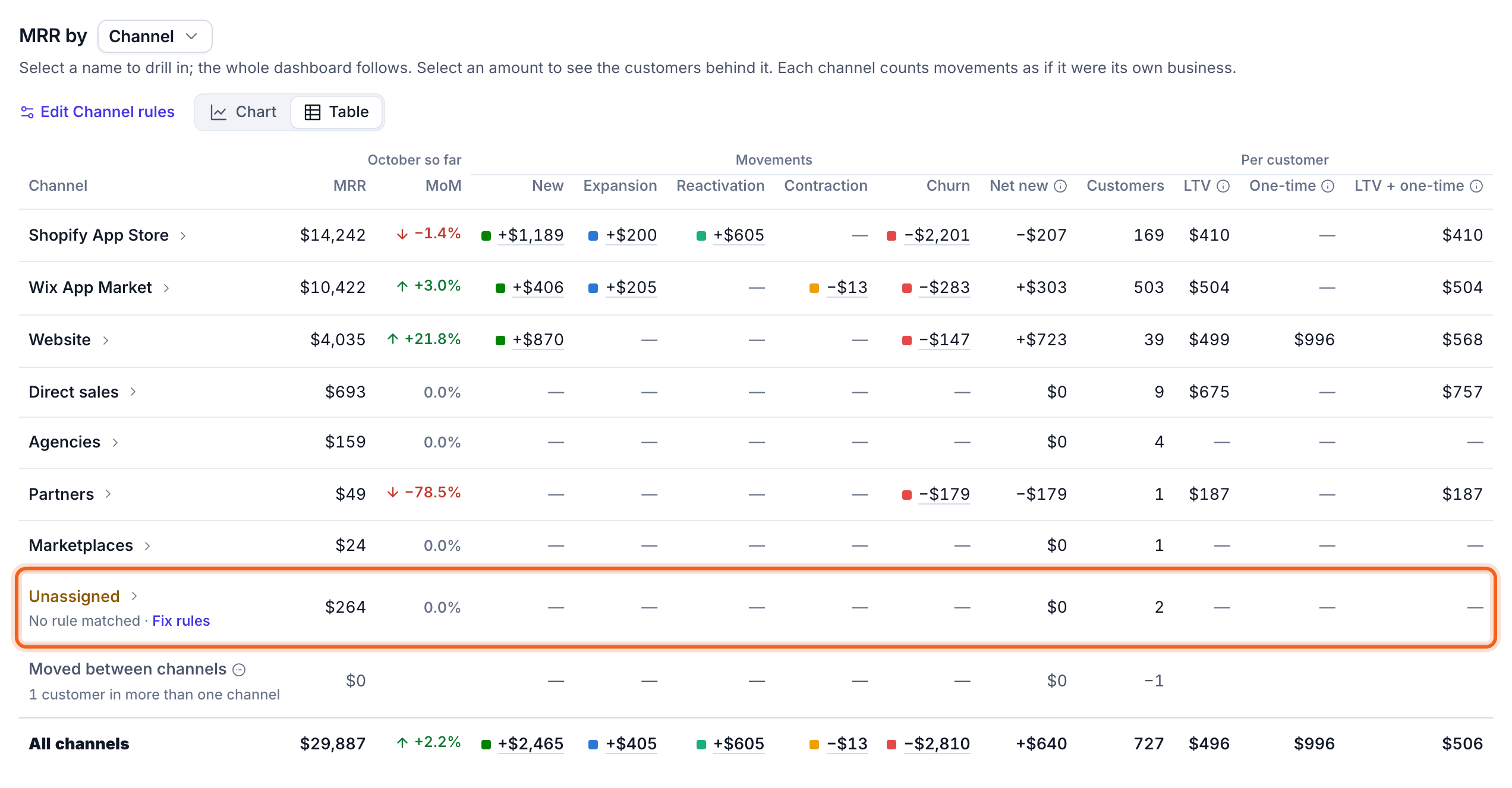
Unassigned
Unassigned holds the MRR that no rule of a custom breakdown matched, such as subscriptions with no channel in their metadata. It’s always shown, so gaps in your data stay visible. Select Fix rules to change the breakdown’s rules. Built-in breakdowns say what’s missing instead, such as No country.