Churn Signals compares each paying customer’s product activity with their own normal level, never with other customers. When someone’s key activity drops sharply or stops, they’re flagged on At risk. Priority weighs a customer’s MRR and how far their activity fell. It’s a way to order the list, not a probability of cancelling.

1. Create an API key

Go to Settings → API, name a key, tick Tracking only, and select Create key. A tracking-only key can identify accounts and send events, nothing else. Keep it on your server.

2. Send events from your server

Install the Node.js SDK:
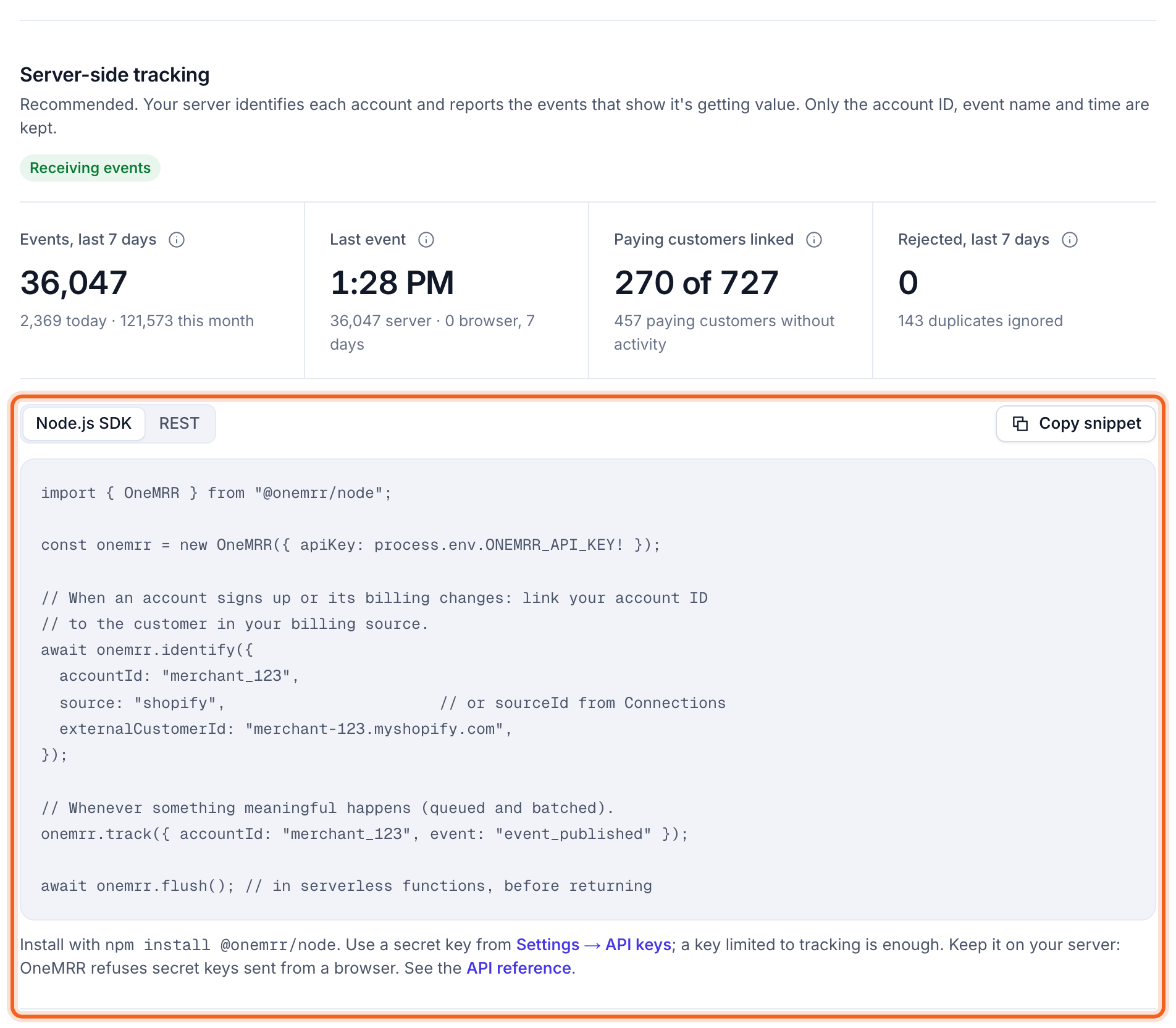
Tell OneMRR who each account is once, and send an event whenever something meaningful happens:
Only the account ID, the event name and its time are sent. No properties, page URLs or IP addresses. Not on Node.js? The same calls are a REST API. Churn & retention → Settings → Tracking has the snippet for both, with your workspace’s details filled in, and shows when events start arriving.
The Tracking page, with the status and the install snippet outlined

3. Mark your key events

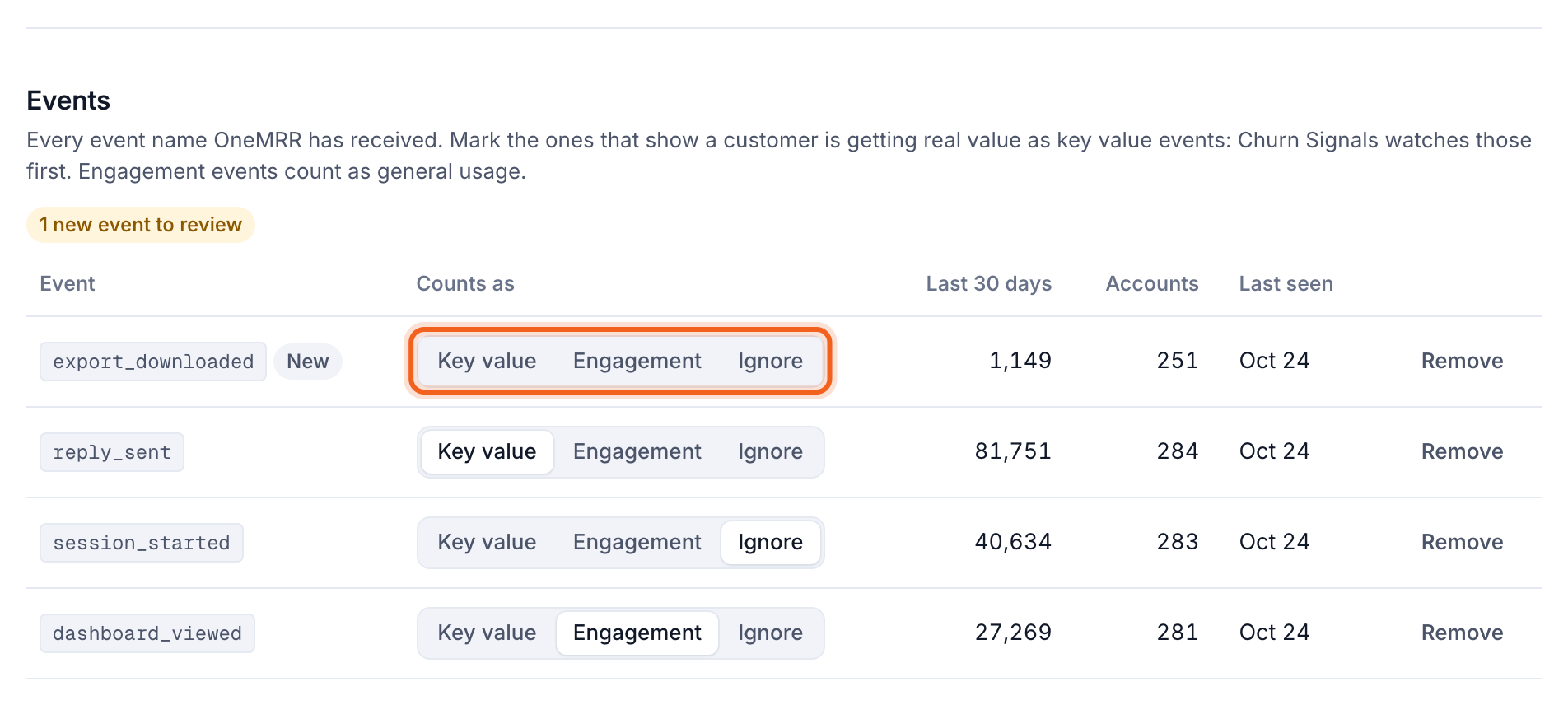
Under Events on the same page, give each event a role:
  • Key value: the thing customers pay for, such as publishing a report or sending a reply. Churn Signals watches these.
  • Engagement: signs of use that matter less, such as opening the dashboard.
  • Ignore: noise, such as logins.
New events are marked New until you choose.
The Events list with the role switches outlined
Accounts and billing customers, below it, lists accounts your app sends events for but never linked to a billing customer. Link them there, or send identify with a link.

4. Turn on detection

Go to Churn & retention → Settings → Detection.
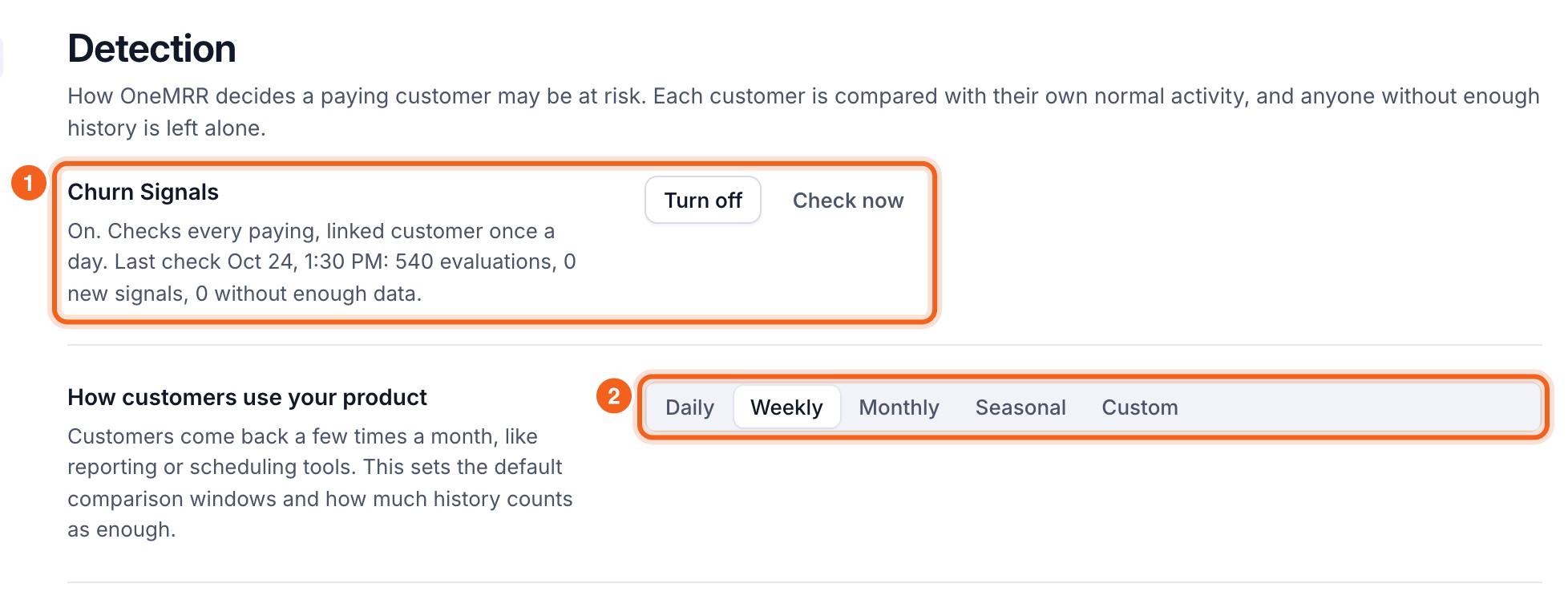
Detection settings: Churn Signals turned on, and the usage pattern, numbered 1 and 2
  1. Select Turn on. OneMRR checks every paying customer once a day. Select Check now to run it straight away.
  2. Under How customers use your product, choose Daily, Weekly, Monthly, Seasonal (busy at certain times of year) or Custom (at least every few days). This sets how long a quiet spell must last before it counts.

Rules

Turning detection on creates two starter rules:
  • Key activity stopped: no key activity for twice the customer’s usual gap.
  • Key activity dropped: key activity down 60% or more against the customer’s usual level.
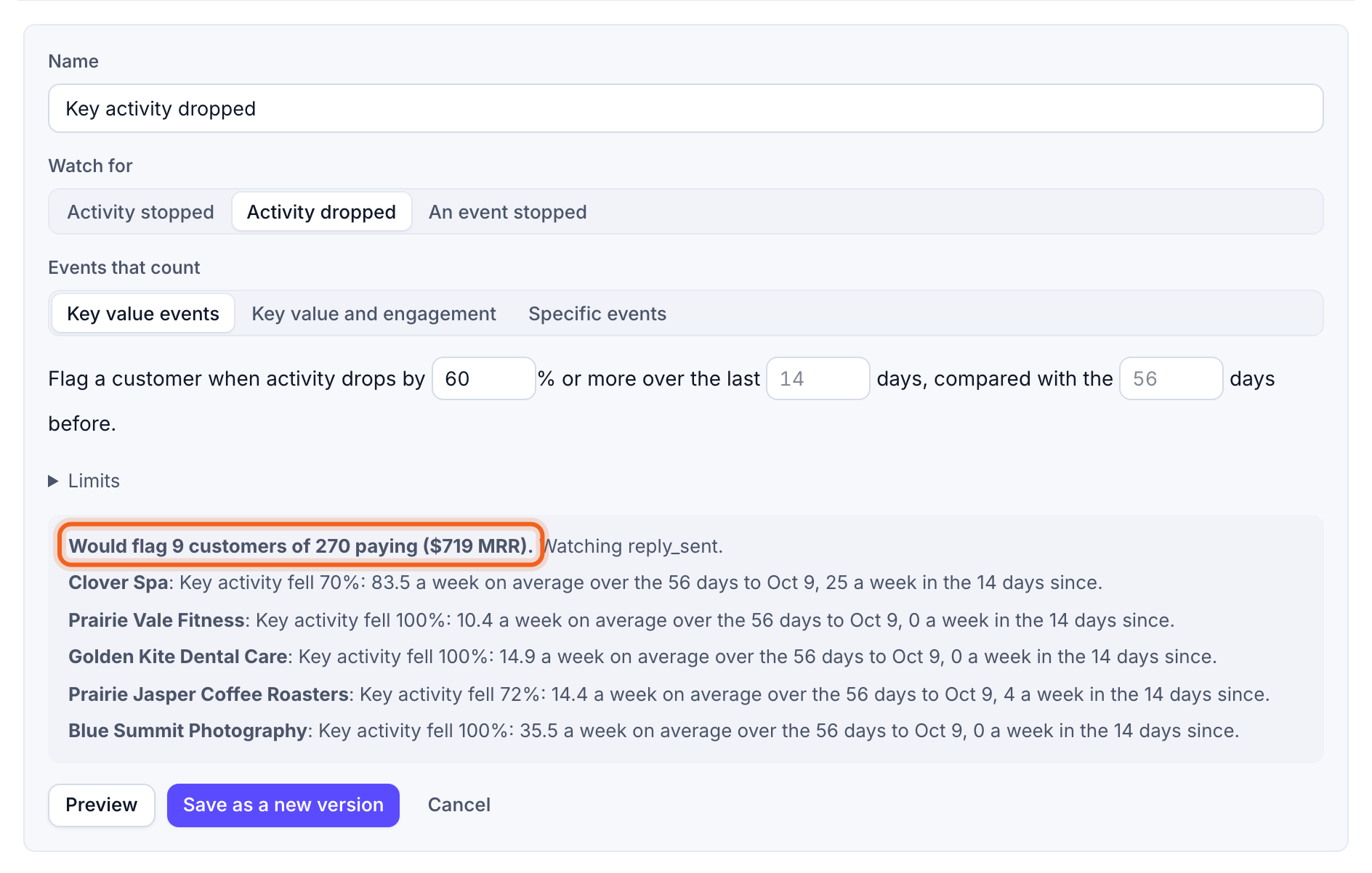
Select Edit to change a rule’s events, thresholds or limits. Preview shows how many paying customers it would flag today before you save. Editing a rule saves a new version, so past signals keep the rule they were raised under.
The rule editor with its preview outlined
New customers, and customers with too little history, aren’t judged until there’s enough to compare against. If events stop arriving for your whole workspace, detection pauses rather than flagging everyone. Next: act on at-risk customers.