Churn & retention → Automations decides what OneMRR does on its own. Everything starts off.

When a customer is flagged

For each Churn Signals rule, choose:
  • Notify me: the flag shows on At risk, and owners and admins get a digest email.
  • Prepare an email: a check-in email is drafted for you to review and send.
  • Email automatically: the check-in email goes out on its own, within the limits below.
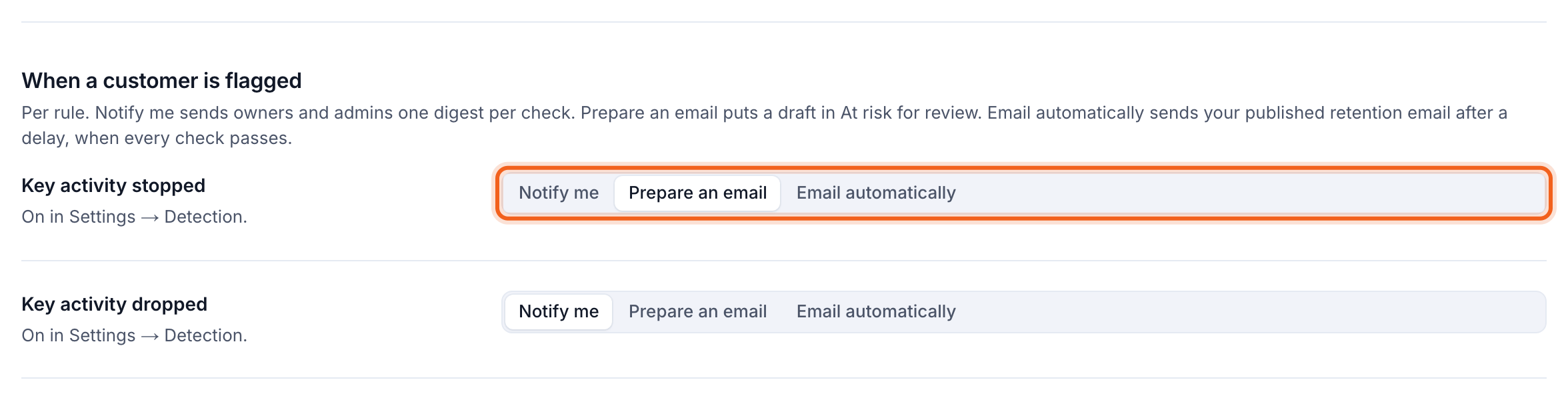
When a customer is flagged, with the action choices outlined
The email options need a published retention email and a verified reply-to address first.

The retention email

Write it under Churn & retention → Settings → Retention email: subject, preview text, headline, message, an optional button, and a signature. It’s friendly and low-pressure, and never mentions monitoring. The preview shows it as customers will see it. Select Send a test to try it, then Publish.
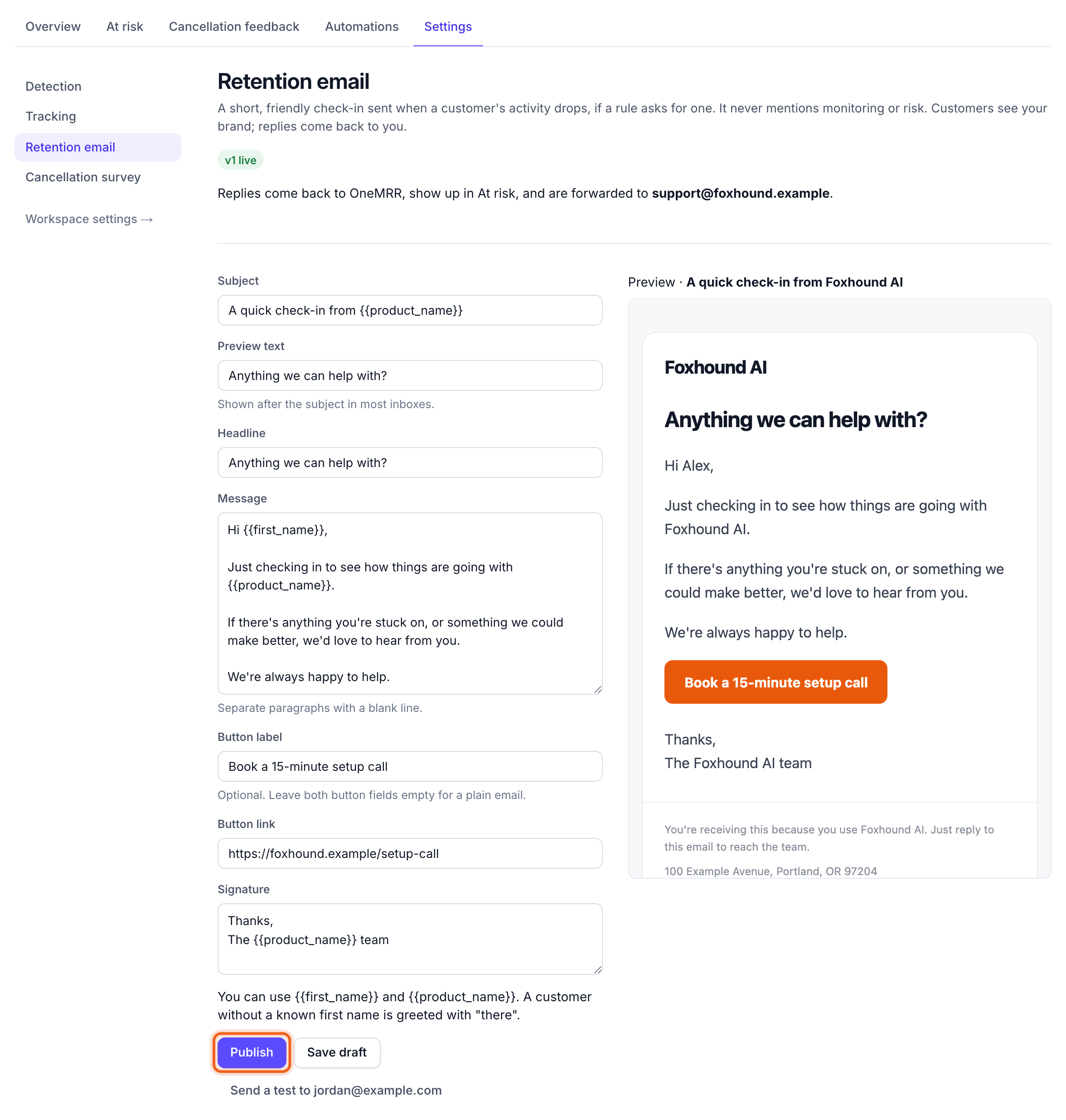
The retention email editor with Publish and the preview outlined
Your brand and reply-to address come from Churn & retention → Settings → Cancellation survey → Branding. A reply-to address works only once you confirm it from the email OneMRR sends.

Automatic emails

Under Automatic emails, turn sending on and choose:
  • Send after: 1 hour, 1 day, 3 days or 1 week after the flag.
  • Sending hours: when emails may go out, in your time zone, and a daily limit.
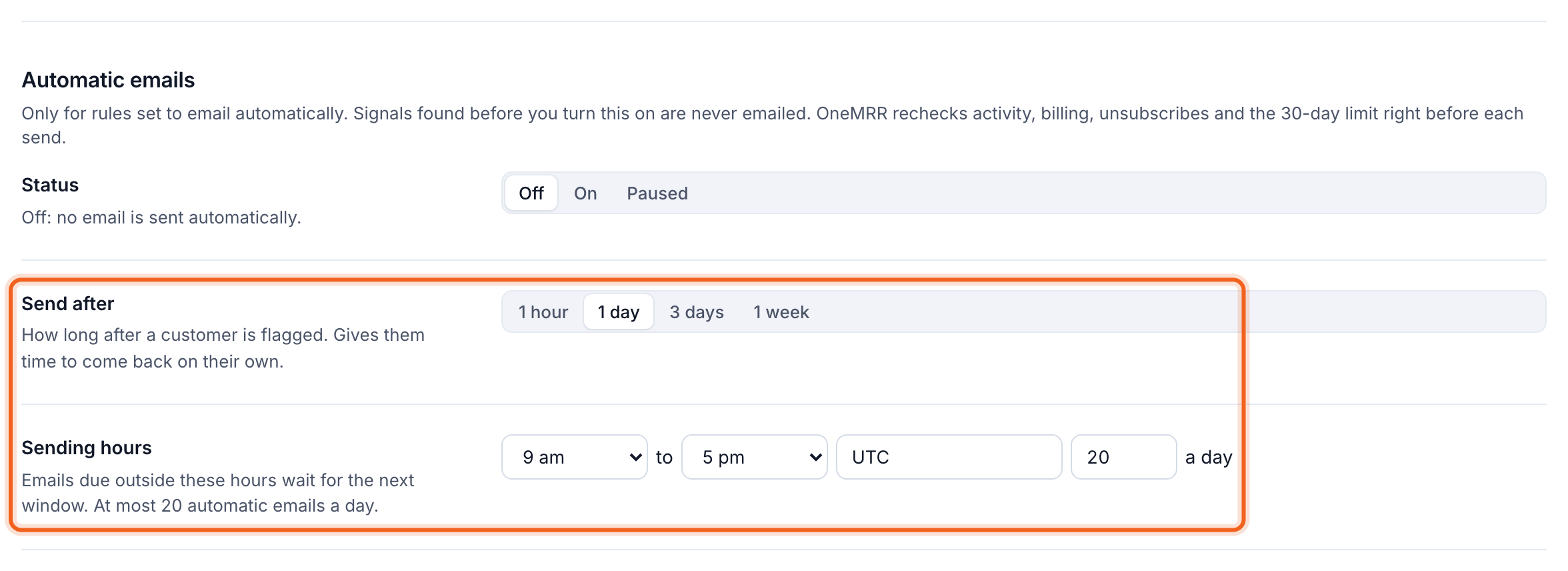
Automatic emails settings with Send after and Sending hours outlined
OneMRR never emails a customer more than once in 30 days, across retention and feedback emails, and skips anyone who has asked to cancel, opted out or replied recently.

Cancellation feedback email

Under Cancellation feedback email, choose when to send your cancellation survey: when the customer asks to cancel or when their access ends, and how long after. Last 30 days, as a dry run shows who would have been emailed. Delivery history lists the latest emails and what happened to each.