Set up the survey
Go to Churn & retention → Settings → Cancellation survey. The steps across the top show what’s left: Brand, Survey, Email, Delivery, Send test, Enable.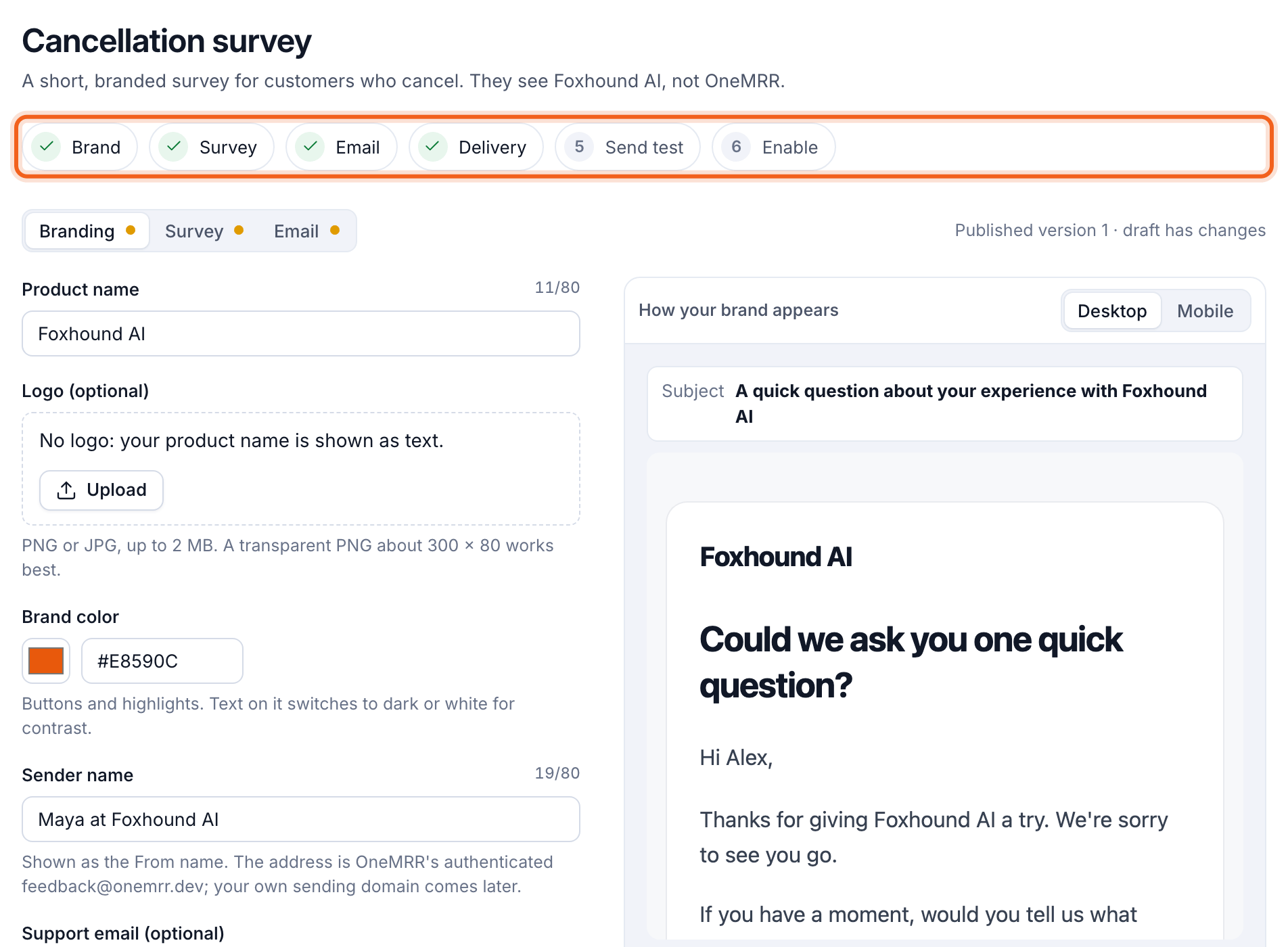
- Branding: your product name, logo, color, sender name, support email and postal address, and the reply-to address. Select Save and confirm, then confirm the address from the email you receive.
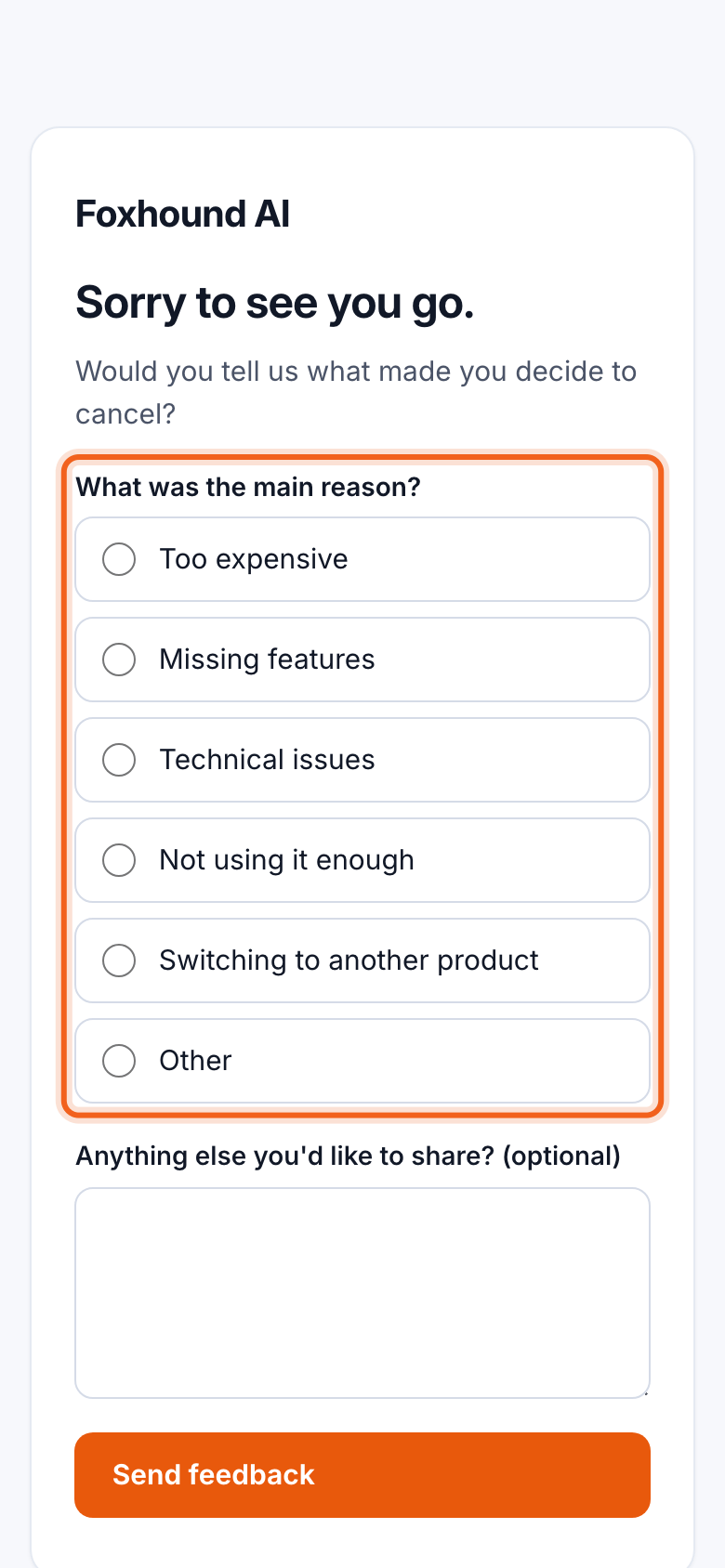
- Survey: the title, the question, and 3 to 8 answers. Give each answer a reporting category: pricing, missing features, technical issues, low usage, switched to a competitor, or other. You can add an optional comment box.
- Email: the email that carries the survey link.
Who gets the survey
Read the feedback
Churn & retention → Cancellation feedback shows the last 7, 30 or 90 days: cancellation requests, churned MRR, emails sent and answers. The funnel follows each email from sent to answered. Why customers leave adds up the answers by reason.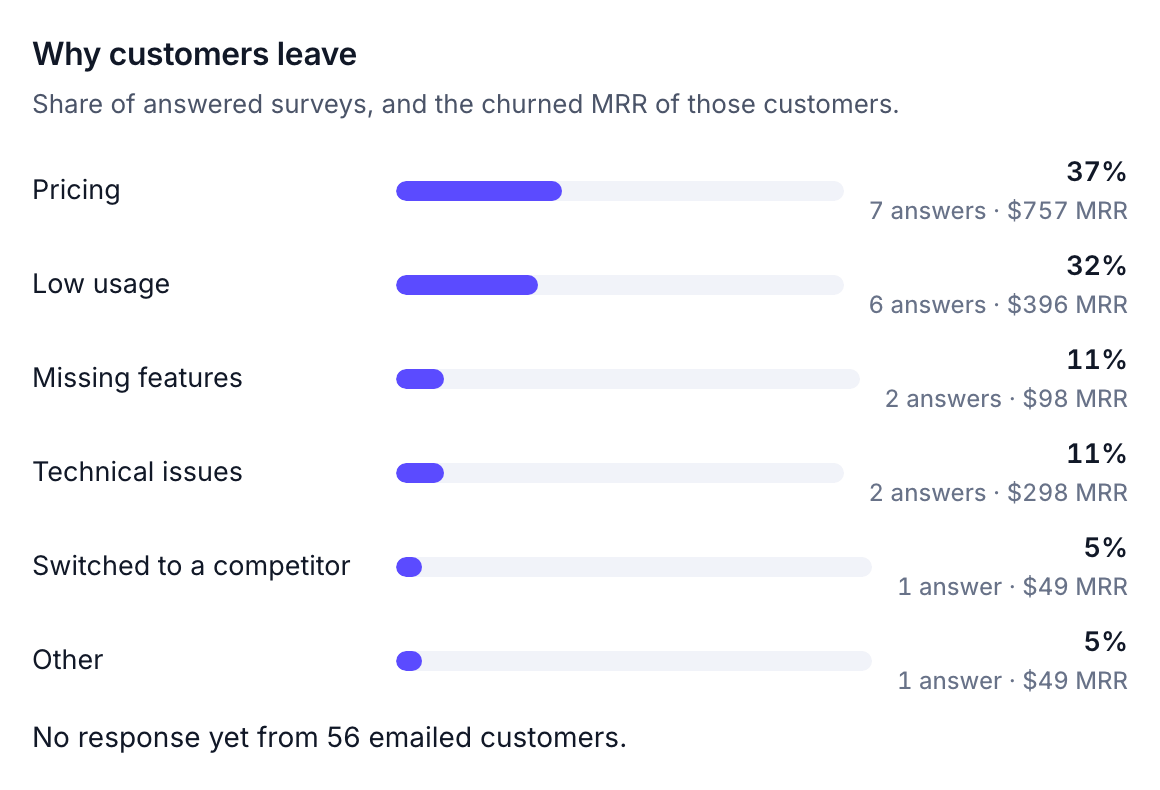
What customers see
The survey opens in the browser with your branding. Customers pick a reason, add a comment if they like, and submit.