The cancellations
Cancellations lists every cancellation, newest first, with its source, MRR, when it was requested, when access ends, the survey email and the answer. Filter by period and source; Export CSV downloads the list. The email status bar above the list counts the cancellations by where their survey email stands (Needs review, Upcoming, Sent, Responded, Not sent, Failed). Select one to show only those. Responded means the customer answered the survey. Select a cancellation for its timeline and email activity. From there, select Email the survey now, or Copy survey link to send it yourself. A link works once and expires in 30 days.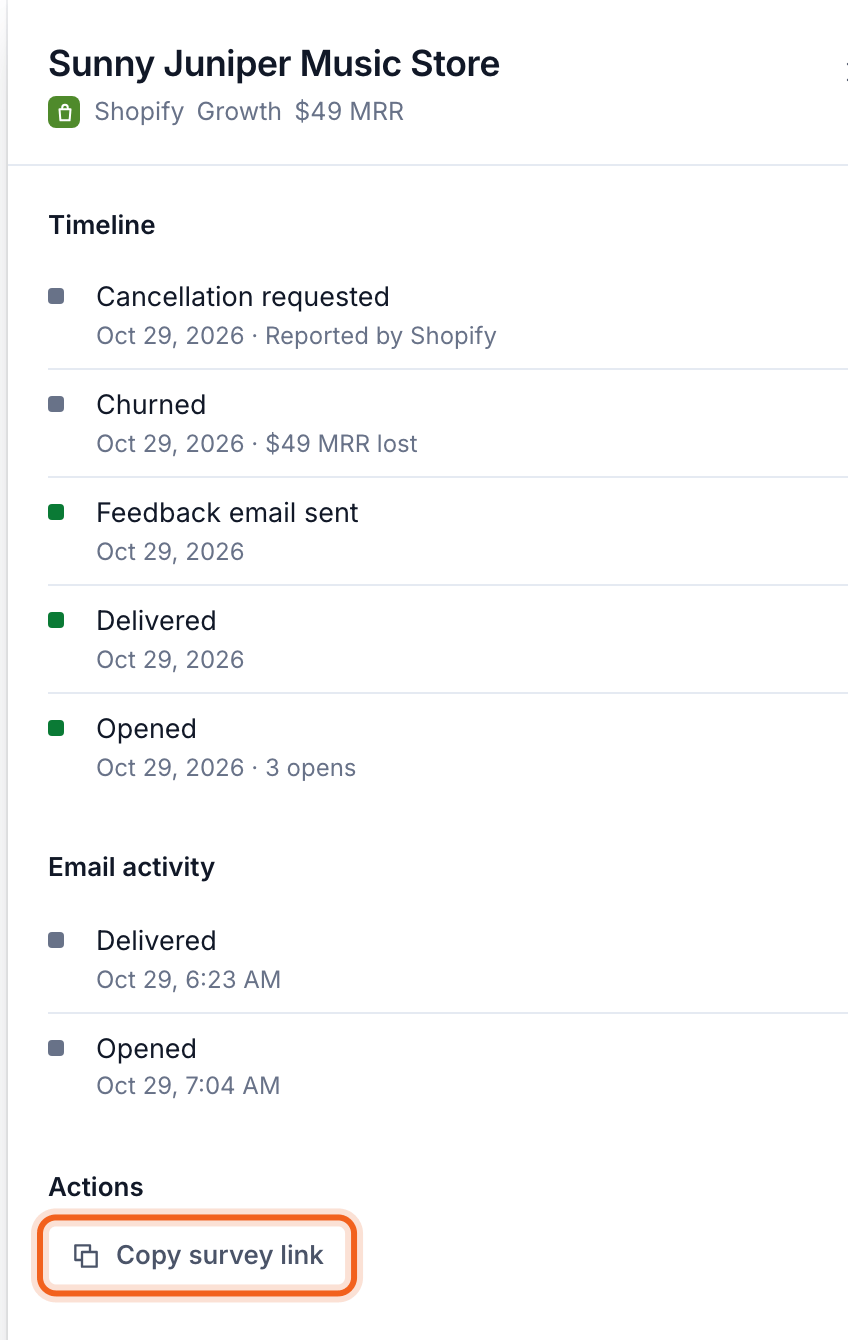
Read the feedback
Select Results. Across the top: cancellation requests, churned MRR, survey emails sent and answers. Email performance follows each email from sent to answered. Why customers leave adds up the answers by reason.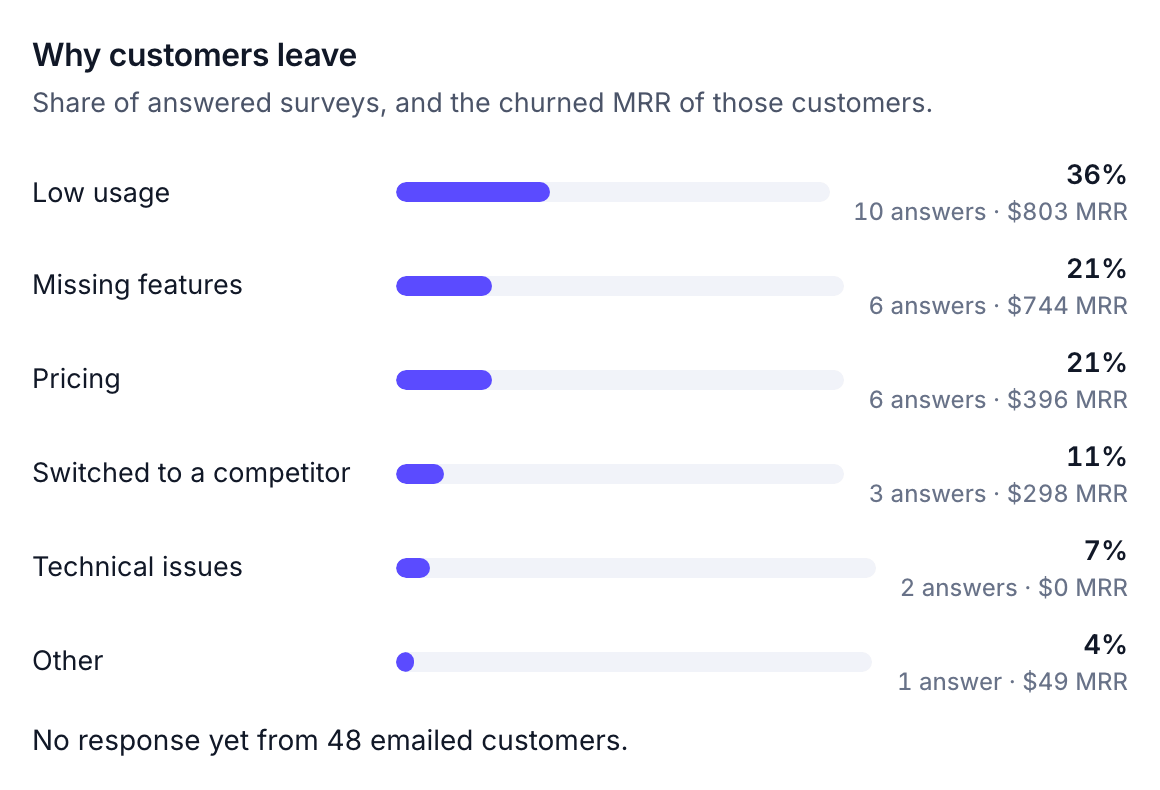
Set up the survey
Go to Churn & retention → Setup → Emails, and select Set up (or Edit) on Cancellation survey, then Edit email. The steps across the top show what’s left: Brand, Survey, Email, Delivery, Send test, Enable.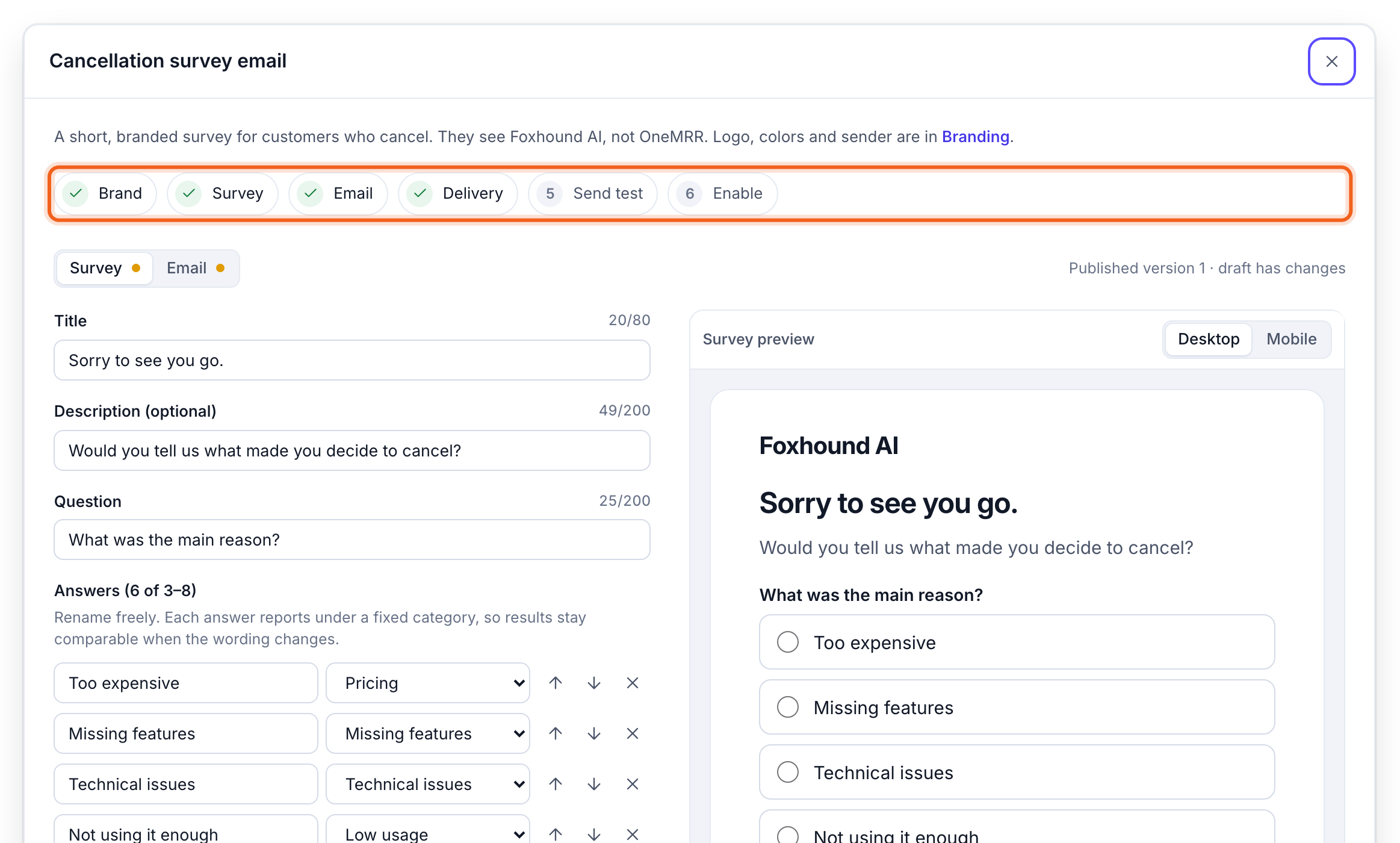
- Brand: your product name, logo, color and sender name, and the reply-to address, under Setup → Brand and sender. See Branding and sending.
- Survey: the title, the question, and 3 to 8 answers. Give each answer a reporting category: pricing, missing features, technical issues, low usage, switched to a competitor, or other. You can add an optional comment box.
- Email: the email that carries the survey link.
Who gets the survey
What customers see
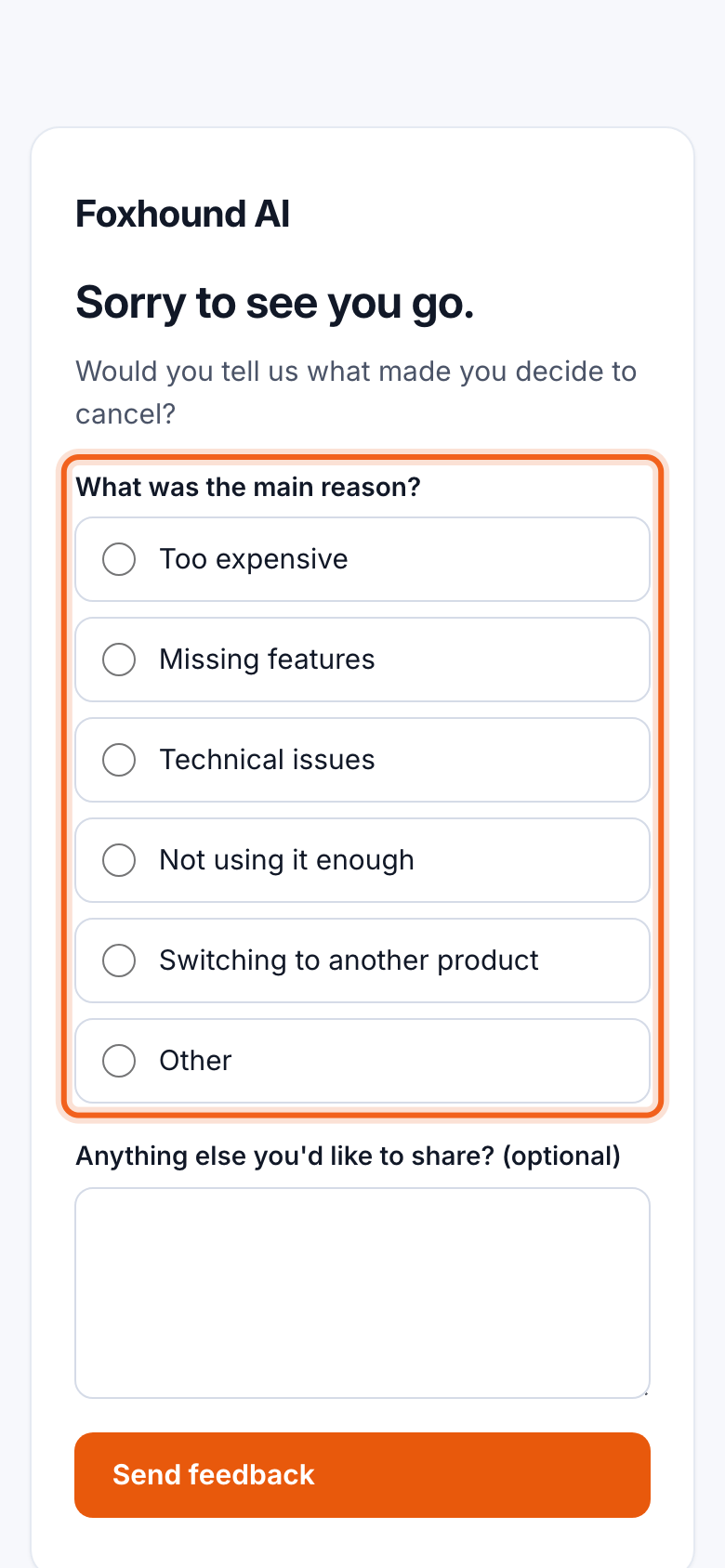
The survey opens in the browser with your branding. Customers pick a reason, add a comment if they like, and submit.