1
See who's leaving
Churn & retention shows lost MRR, customer and revenue churn, and who left, month by month. Scheduled cancellations lists customers who have asked to cancel but are still paying, with when each one ends. They’re the ones you can still win back.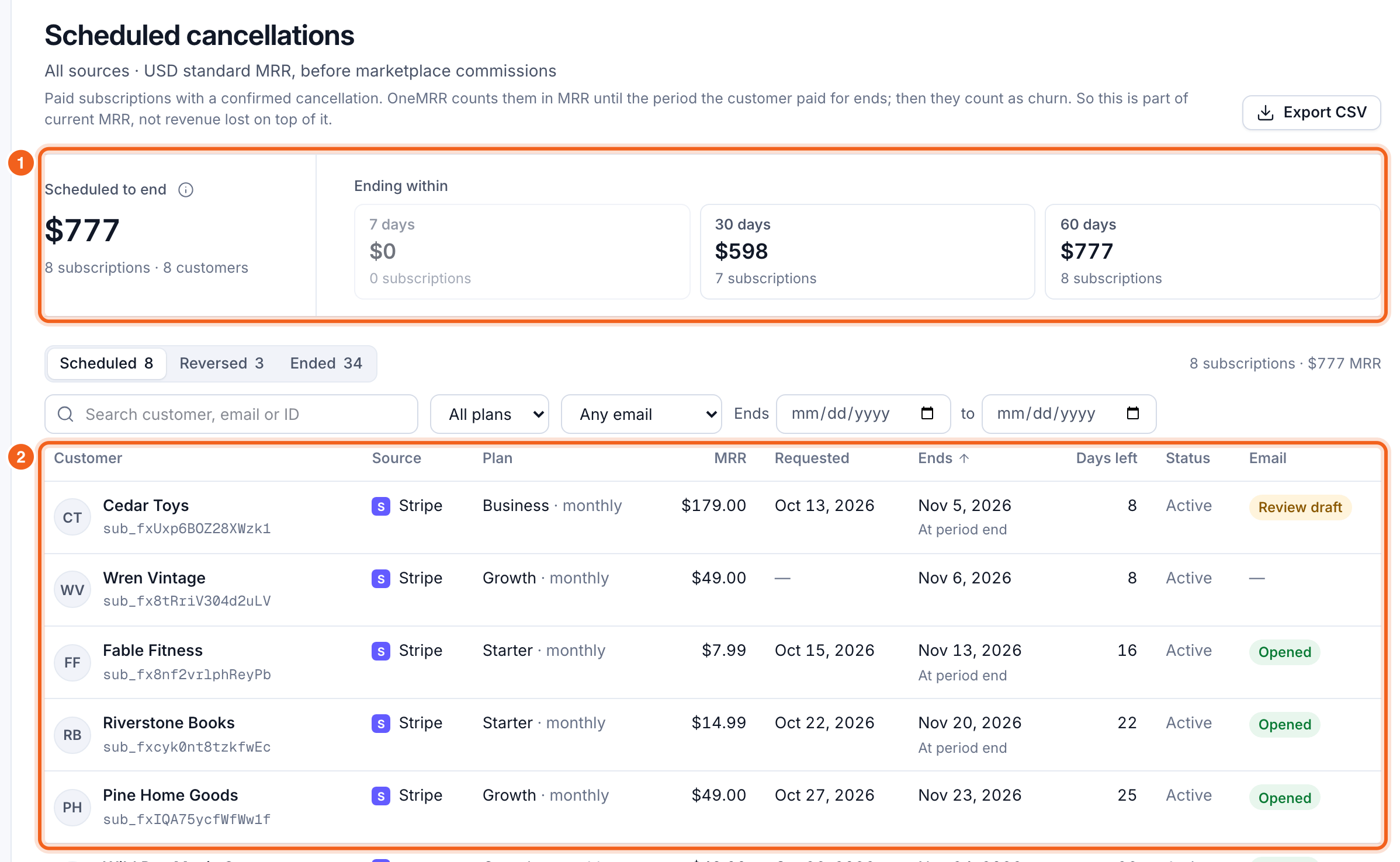
2
Send product events
Under Churn & retention → Settings → Tracking, create an API key and send OneMRR who each account is and when they do something that matters, using the server SDK or the API. Then mark the few events that show real use as key events.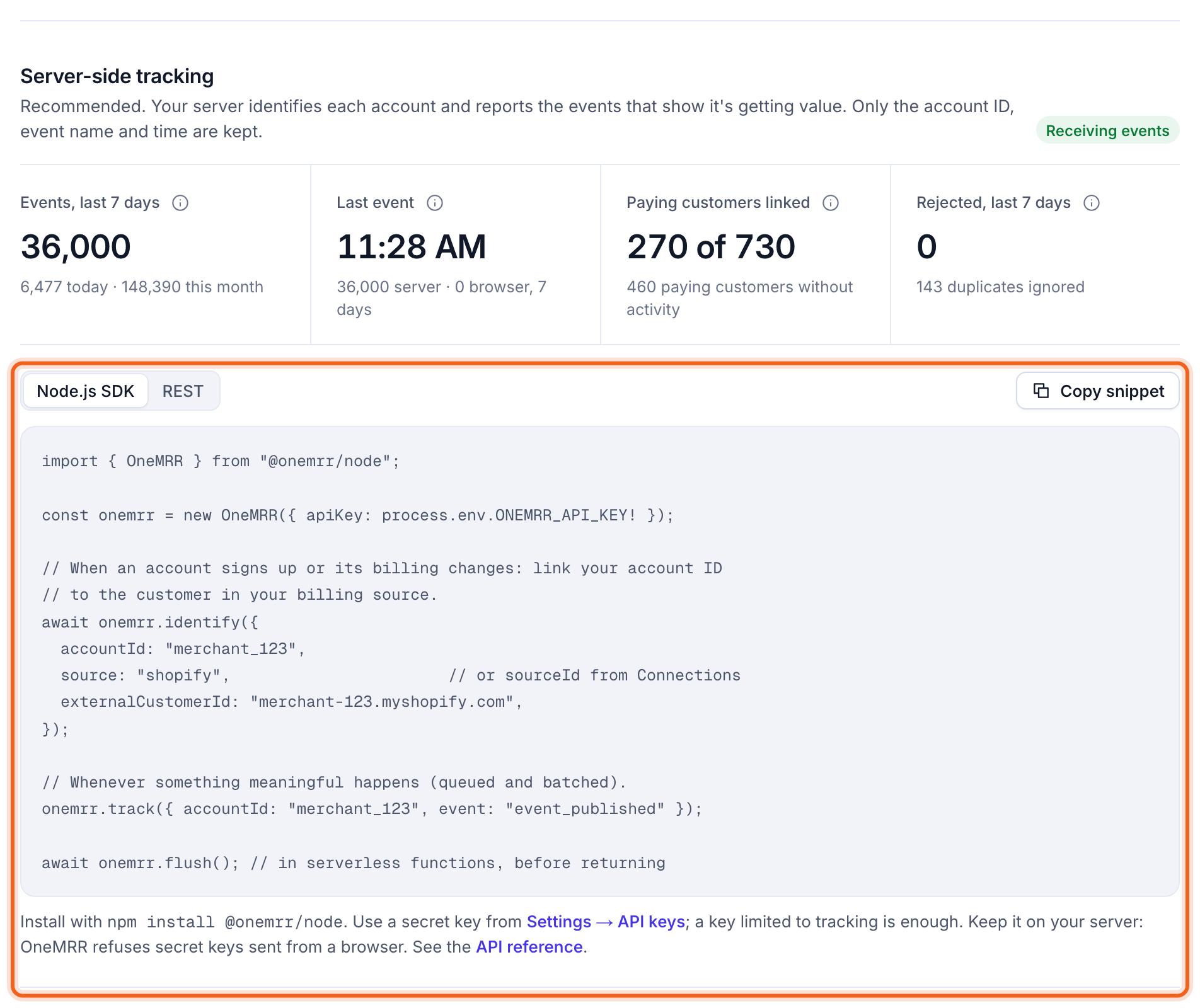
3
Turn on detection
Under Settings → Detection, choose how often customers normally use your product, review the rules (activity dropped, activity stopped), and select Turn on. OneMRR checks every paying customer once a day against their own normal use.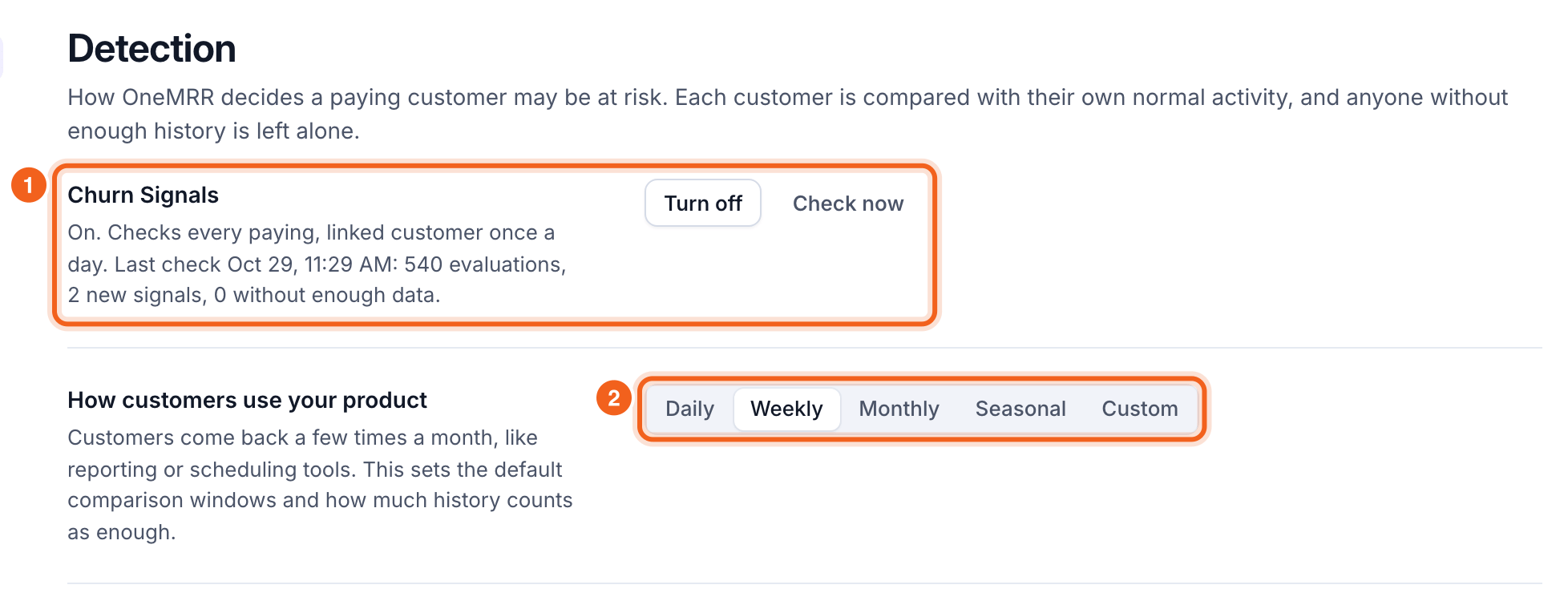
4
Set your brand and sender
Under Settings → Branding, add your product name, logo, color and sender name, and confirm a reply-to address. On Launch and Growth, send from your own domain; on Growth, emails can be fully white-label.Branding and sending →
5
Choose your emails
Automations has three emails, one for each moment a customer might leave. Each starts off, and none of them ever goes to customers from before you turned it on.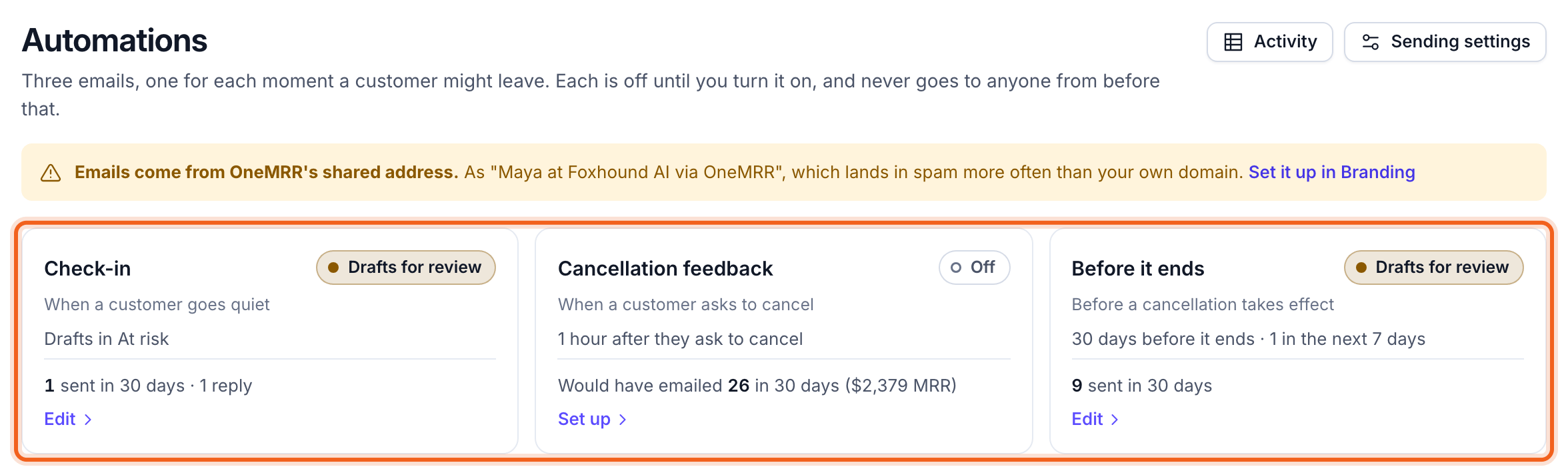
- Check-in: when a customer goes quiet. Notify me, prepare a draft for review, or send automatically.
- Before it ends: to customers with a scheduled cancellation, a set number of days before it takes effect.
- Cancellation feedback: a short survey after someone asks to cancel.
6
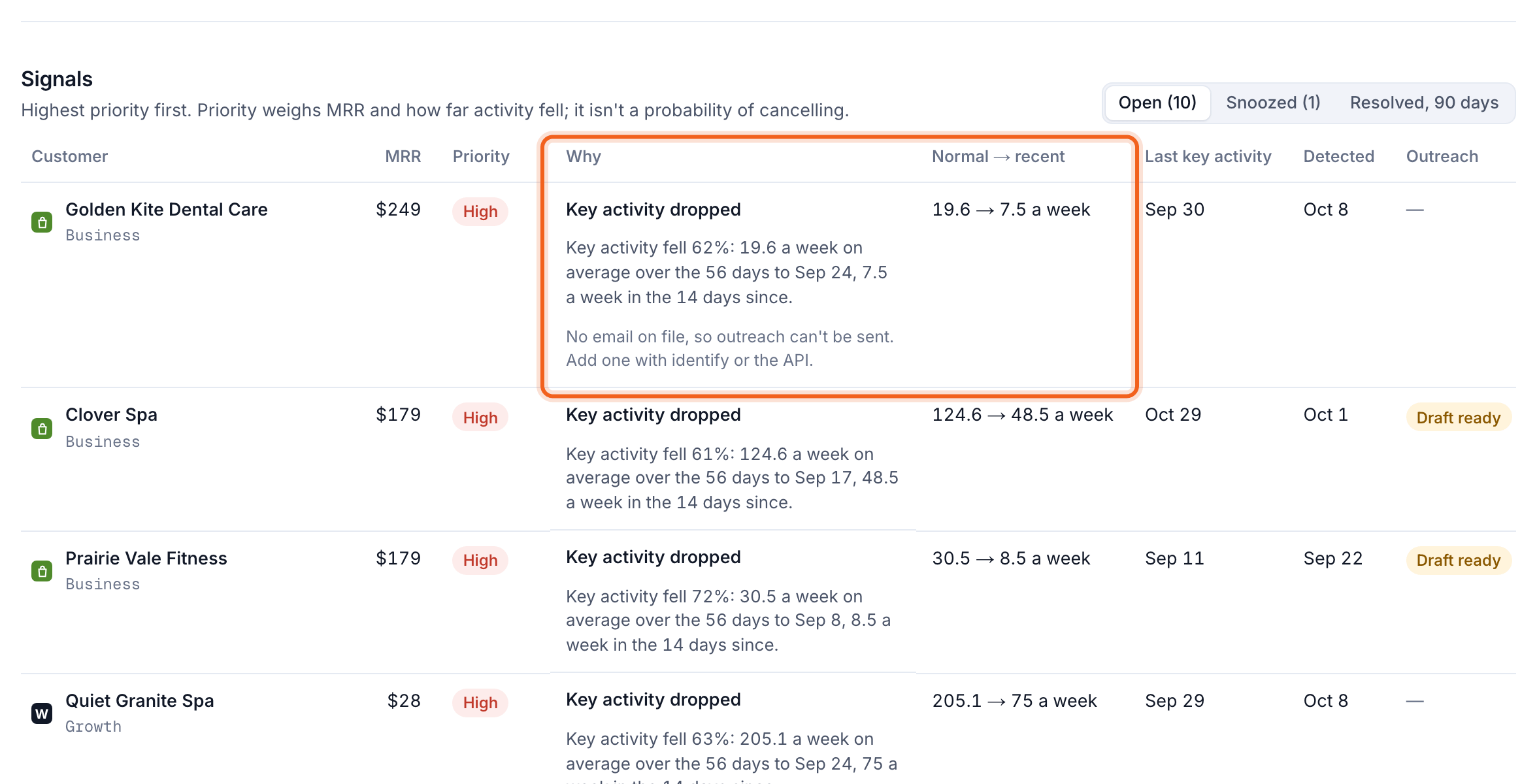
Work the at-risk list, and measure what works
At risk lists flagged customers, highest priority first, with why each was flagged. Email impact compares each email with a holdout group of customers who didn’t get it, so you see whether it actually changed what customers did.