

1. Add the Wix source
On Connections, select Connect a source, then Wix, then Add Wix. The app fields are optional. See Connect a billing platform for the other platforms.2. Download your payouts from Wix
1
Open Payouts
In your Wix developer dashboard, open your app, then Manage → App Market → Payouts.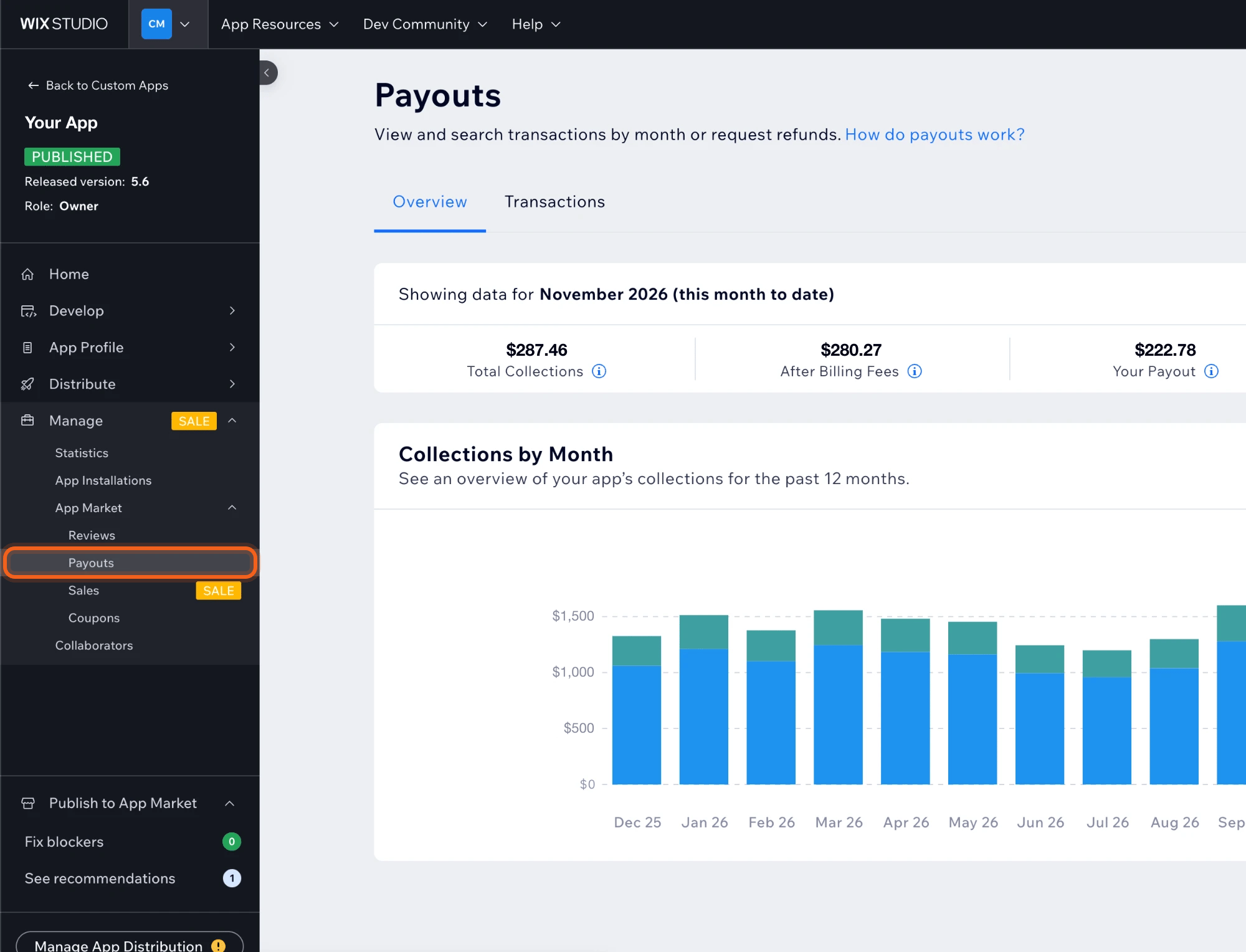
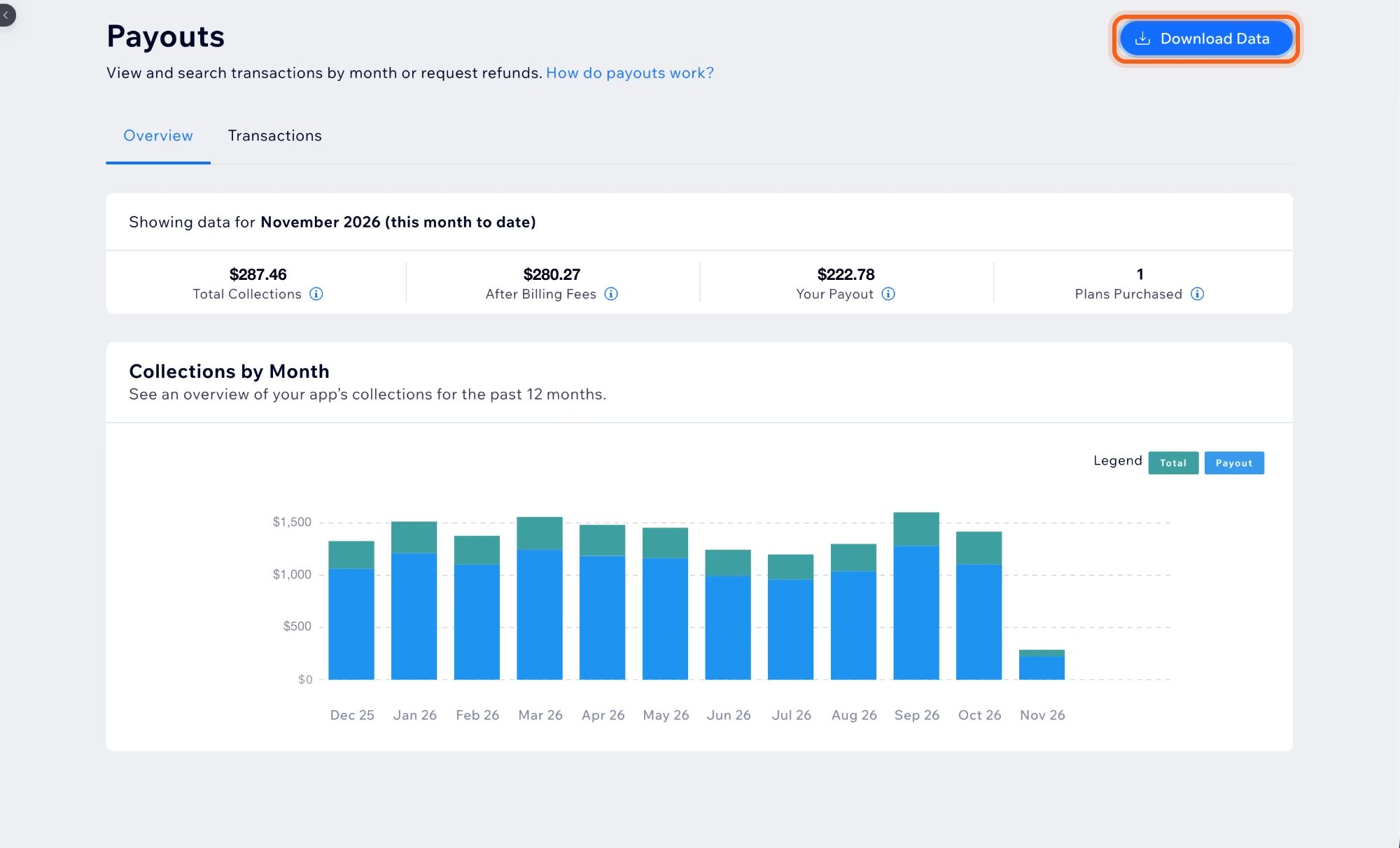
2
Select Download Data
3
Choose the months and download
For your first upload, choose From the first month your app charged anyone, and To this month. After that, choose from the month of your last export to this month. Overlapping months are fine: OneMRR counts each payment once.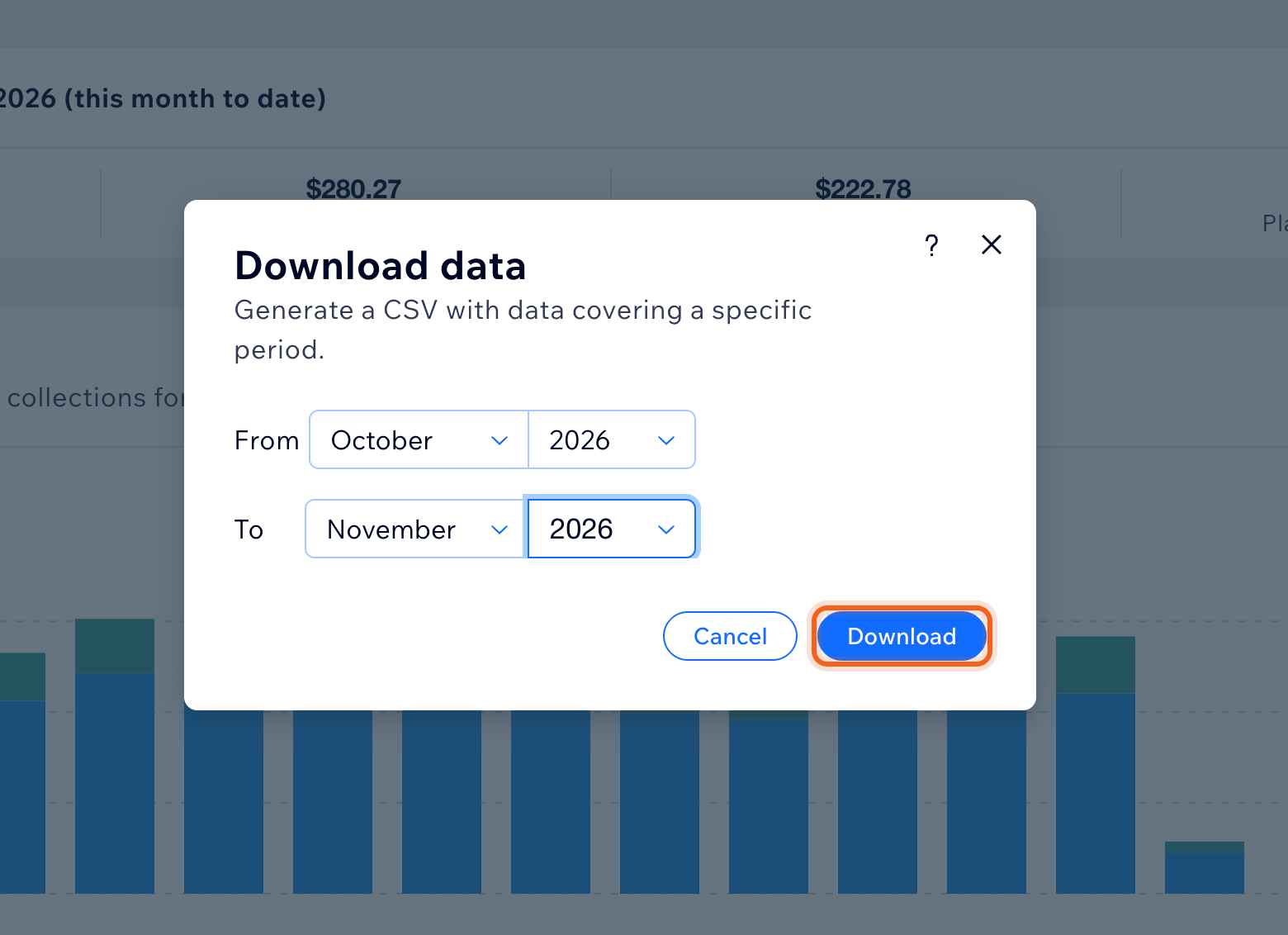
4
Wait for the CSV
Wix generates the file, which can take a few minutes. You can close the dialog: Wix shows a notification when the file is ready to download.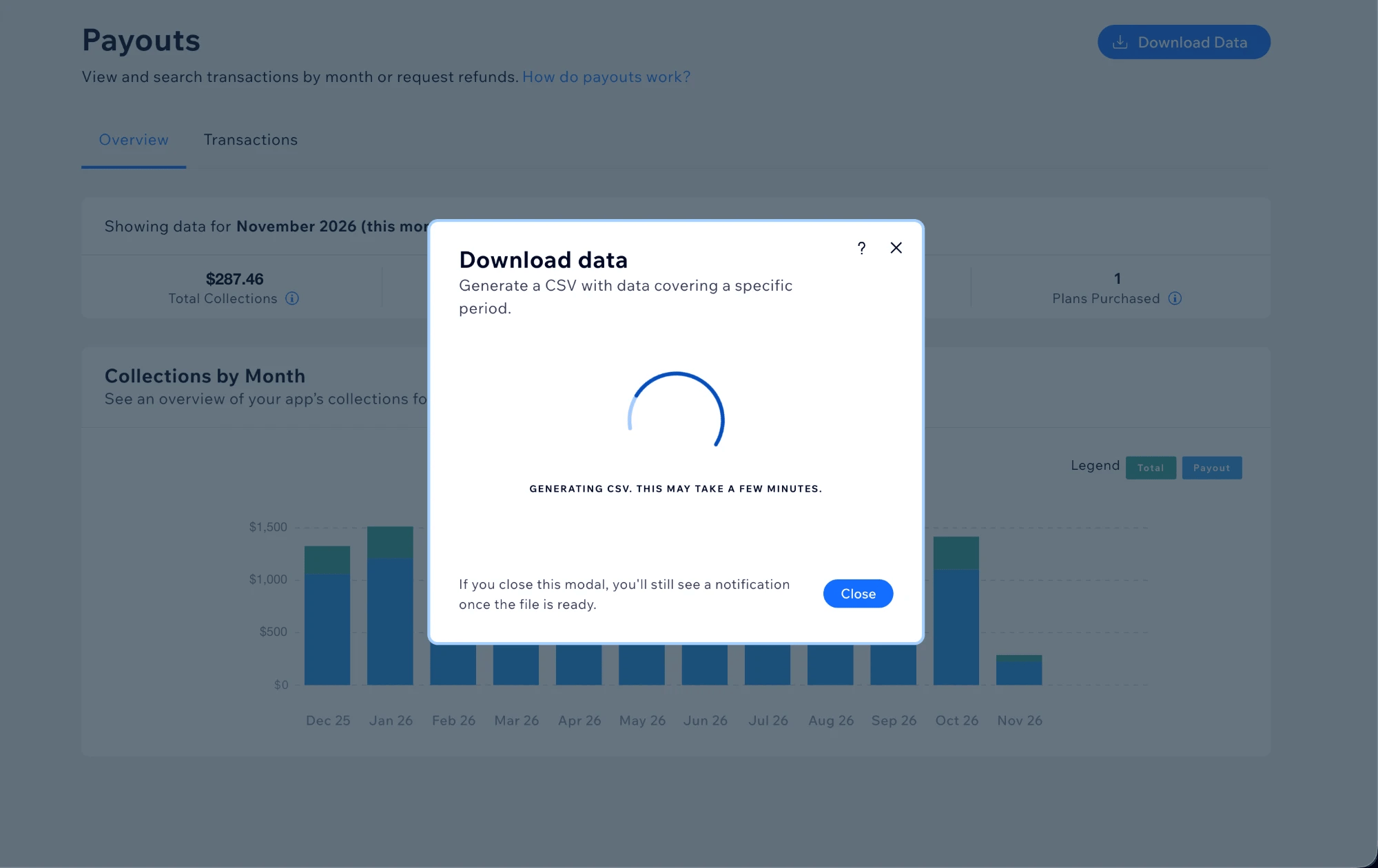
3. Upload it to OneMRR
On Connections, select the Wix app, then Upload payout CSV, and choose the file. OneMRR rebuilds your Wix history from every file you’ve uploaded, so keep uploading new exports rather than replacing old ones. The source shows how far your payouts reach, such as Payouts through Oct 31.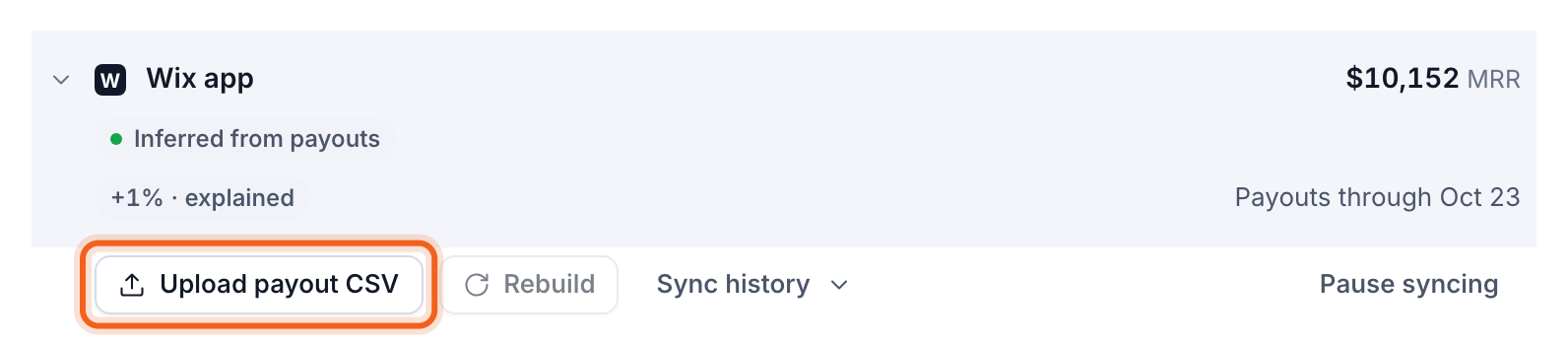
Wix converts other currencies to USD at each payment’s rate. Small changes from that are recorded as currency movements, not expansion or contraction. See How MRR is calculated.
Between uploads, OneMRR only knows the payments in your last export. A site that renewed after it can look lapsed once its term and grace period pass, so upload at least once a month.
4. Optional: send your Wix webhooks to OneMRR
The payout export has no emails, and it only shows a cancellation once a renewal is missed. If your app has a server that receives Wix webhooks, send OneMRR:- Customer details: each site’s name and owner email, so Wix customers have names and emails in OneMRR.
- Confirmed cancellations: when a site turns off auto-renewal, it becomes a scheduled cancellation on Ending soon, counted as confirmed rather than inferred. It shows once your uploaded payouts reach the site’s current term.
Create an API key
Go to Settings → API, enter a name under New key, such as Wix webhooks, and select Create key. Copy the key straight away: it’s shown only once. Keep it on your server, never in your app’s frontend.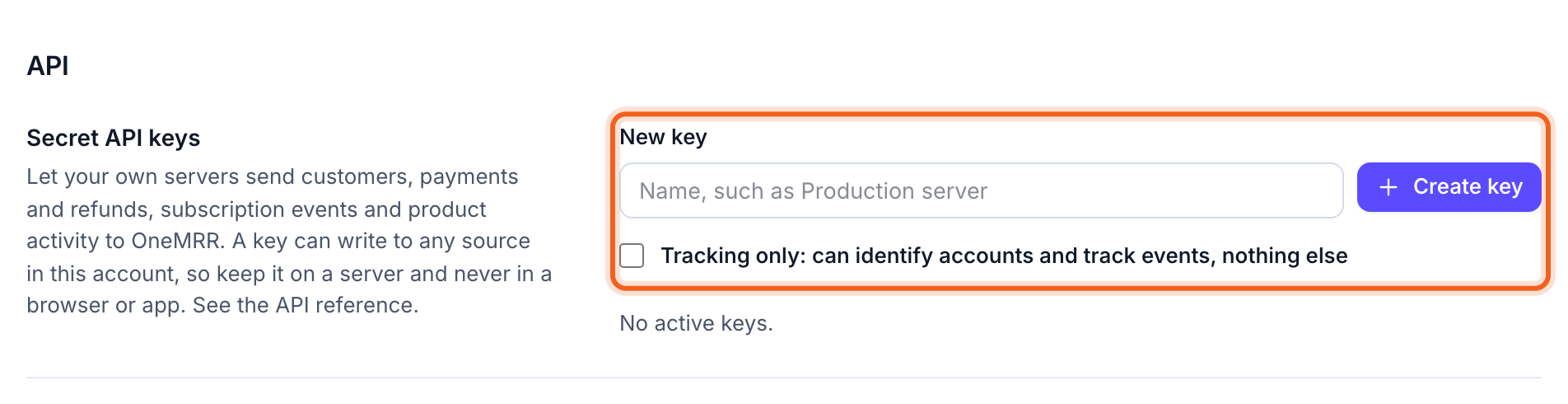
Find the Wix source ID
On Connections, open the Wix app, then Setup. Copy the API source ID. Every request sends it assource_id.

.env
Subscribe to the webhooks
In your Wix app’s dashboard, subscribe your webhook URL to these App Instance events:
You don’t need App Instance Removed: the payouts show when payments stop.
Call OneMRR from your server
A small helper for OneMRR’s API. Customers are keyed by the site’s Wix instance ID, the same ID as the Instance ID column in the payout export, so OneMRR matches them up.onemrr.js
external_id is recorded once, so a webhook Wix delivers twice is still counted once.
Receive Wix webhooks
Wix signs each webhook as a JWT. Verify it with your app’s public key, from the Webhooks page of your app’s dashboard, then pass the event to its handler. Answer with an error when a handler fails, so Wix delivers the webhook again.server.js
Handle each event
wix-handlers.js
When the cancellation ends
Wix’s webhook doesn’t say when the paid term ends, and Wix’s Get App Instance only returnsbilling.expirationDate for yearly and longer plans. So leave paid_through out: OneMRR takes the end of the term the site last paid for from your payouts. If a payment after the cancellation shows the site renewed after all, OneMRR ignores the cancellation.
If you do know the end date, send it as paid_through, and OneMRR uses it as is:
A cancellation sent before your latest upload covers the site’s current term waits for that upload. Until then, the site stays active in OneMRR.
Check it worked
The handler’s calls answer with a status:/customers:created,updatedorunchanged. The name and email show on the customer in OneMRR straight away./subscription-events:createdthe first time,unchangedwhen Wix delivers the same webhook again. Each new event queues a Wix rebuild, and the cancellation then shows under Ending soon.